



L'efficacité du minage Bitaxe augmente jusqu'à 60% avec une configuration correcte de la suite AxeBench. Ce gain de performance rend une installation correcte essentielle, aussi bien pour les mineurs expérimentés que pour les nouveaux venus dans le minage Bitcoin.
La suite AxeBench constitue la boîte à outils principale pour l'optimisation des appareils Bitaxe. Le package logiciel inclut les composants AxeBench, AxeSim et AxeLive, compatibles avec les plateformes Windows, Linux et Umbrel. Chaque composant cible des aspects spécifiques de la gestion du matériel de minage.
AxeBench Suite v3.0 introduit le moteur Auto-Tune — la mise à niveau la plus significative pour le logiciel de tuning Bitaxe. Ce système offre un benchmarking plus rapide, une meilleure détection des paliers et une cartographie optimisée des tensions et fréquences. Des protocoles de sécurité protègent le matériel de minage lors de toutes les opérations de tuning.
La suite inclut des modules spécialisés pour les opérations de minage en solo. Les modules AxeBTC, AxeBCH et AxeDGB se connectent directement aux pools de minage en solo. L'intégration du nœud Umbrel permet des capacités d'hébergement continu pour une gestion du minage toujours active.
Ce guide couvre les conditions d'installation et les procédures de configuration pour tous les modèles Bitaxe pris en charge. Les procédures de configuration vont de l'installation de base aux paramètres de tuning avancés spécifiques à votre matériel de minage.

Mineshop.eu propose la gamme complète des mineurs domestiques Bitaxe et NerdQAxe, avec expédition via DHL/FedEx dans toute l'Europe. La plupart des commandes sont expédiées depuis l'Irlande et la Lettonie. Mineshop approvisionne les mineurs européens depuis 2016. Le matériel utilisé dans ce guide — notamment le Bitaxe Gamma 601, le Bitaxe Ultra 204 et le NerdQAxe+ — est fabriqué par Proto.xyz et disponible avec une garantie complète pour l'Union européenne.
Mineurs Bitaxe compatibles et prérequis
La compatibilité de la suite AxeBench s'étend à plusieurs familles d'appareils de minage Bitaxe. L'identification correcte du matériel et la préparation du système déterminent le succès de l'installation.
Matériel de minage compatible
AxeBench Suite v3.0 fournit des profils d'appareil optimisés pour ces modèles Bitaxe :
Série Supra
-
Profils de tuning à efficacité maximale
-
Gestion thermique améliorée
Variantes Ultra et Max
-
Compatibilité totale avec les profils avancés
-
Optimisation des performances étendue
Séries Hex et Gamma (601/602)
-
Algorithmes de prédiction thermique
-
Prise en charge complète des appareils
-
Mineurs NerdQAxe standard
-
Modèles QAxe+ et QAxe++
-
Paramètres de tuning spécialisés
Le moteur Auto-Tune applique un benchmarking plus rapide et une cartographie des tensions à tous les appareils pris en charge.

Configuration système requise
Systèmes Windows :
-
Windows 10 ou version ultérieure requise
-
Format EXE autonome (sans installation Python)
-
2 Go de RAM minimum, 4 Go recommandés
-
500 Mo d'espace disque libre
-
Aucune dépendance supplémentaire
Systèmes Linux :
-
Distribution Linux récente
-
Compatibilité WSL pour les utilisateurs Windows
-
Connectivité réseau pour la détection des mineurs
Les applications de bureau lancent une interface web accessible à l'adresse http://[YOUR_PC_IP]:5000 depuis n'importe quel appareil du réseau.
Prérequis Umbrel
La configuration d'un nœud Umbrel requiert ces spécifications :
-
Umbrel OS version 0.5.0 minimum
-
4 Go de RAM alloués
-
10 Go d'espace de stockage libre
-
Connexion Internet stable
-
Accès réseau pour la découverte des appareils
-
Installation de Git pour les dépôts manuels
Espace de stockage requis pour la blockchain :
-
Module AxeBTC : 500 Go (blockchain Bitcoin)
-
Module AxeBCH : 200 Go (données Bitcoin Cash)
-
Module AxeDGB : 50 Go (blockchain DigiByte)
L'accès à GitHub doit être disponible pour l'intégration de l'URL du store communautaire lors de la configuration initiale.
Intégration d'AxeBench Suite avec Umbrel
L'installation sur un nœud Umbrel offre un accès direct aux outils de gestion du minage de la suite AxeBench depuis votre serveur domestique. Le processus d'installation via le Community Store nécessite un accès spécifique au dépôt et des étapes de configuration précises.
Accès au Community Store Umbrel
Ouvrez votre tableau de bord Umbrel via l'adresse IP de votre nœud dans n'importe quel navigateur web. Cliquez sur l'icône « App Store » dans le menu du tableau de bord. Sélectionnez l'onglet « Community » pour accéder aux applications tierces.
L'activation de l'onglet Community nécessite d'accéder à Paramètres > Configuration avancée si celui-ci n'est pas visible. Les versions récentes d'Umbrel activent généralement cette option automatiquement. Le bouton Community App Store doit être activé pour accéder au dépôt.
Configuration de l'URL du dépôt
Cliquez sur « Add Repository » dans l'interface de l'onglet Community. Collez l'URL de dépôt suivante dans la boîte de dialogue :
https://github.com/WillItMod/umbrel-community-store
Ce dépôt contient les composants AxeBench, AxeSim, AxeLive, AxeDGB et AxeBCH. Cliquez sur « Add » pour finaliser l'intégration du dépôt. Le système s'actualise automatiquement et affiche les applications AxeBench disponibles.
Vérification de l'installation
Parcourez les listes du Community Store pour confirmer l'ajout réussi du dépôt. Cinq nouvelles applications doivent apparaître :
-
AxeBench – Benchmarking et gestion de flotte
-
AxeSim – Simulateur de performance Bitaxe
-
AxeDGB – Nœud DigiByte avec pool de minage en solo
-
AxeBCH – Nœud Bitcoin Cash avec pool de minage en solo
L'intégration complète du dépôt permet la sélection des composants à installer. Configurez votre SUITE Axebench ici en suivant les procédures d'installation des composants dans la section suivante.
Installation et lancement d'AxeBench Suite
L'ajout du dépôt au Community Store d'Umbrel permet l'installation de la suite AxeBench pour les opérations de minage Bitaxe.
Guide d'installation pas à pas d'AxeBench
Localisez la carte d'application AxeBench dans votre Community Store Umbrel et cliquez sur « Install ». L'installation nécessite 3 à 5 minutes pendant qu'Umbrel télécharge et configure les composants. Une notification confirme la réussite de l'opération.
Les utilisateurs Windows et Linux téléchargent l'application de bureau native depuis les dépôts GitHub officiels. La version Windows fonctionne comme un fichier EXE autonome — aucune installation Python ni dépendance requise.
Lancement de l'application depuis le tableau de bord Umbrel
L'icône AxeBench apparaît sur votre tableau de bord Umbrel après l'installation. Cliquez sur l'icône pour lancer l'application. L'accès direct est possible via http://umbrel.local:5000 ou l'adresse IP de votre Umbrel.
Configurez votre SUITE Axebench ici en utilisant le bouton de configuration lors du premier lancement.
Présentation de l'interface initiale
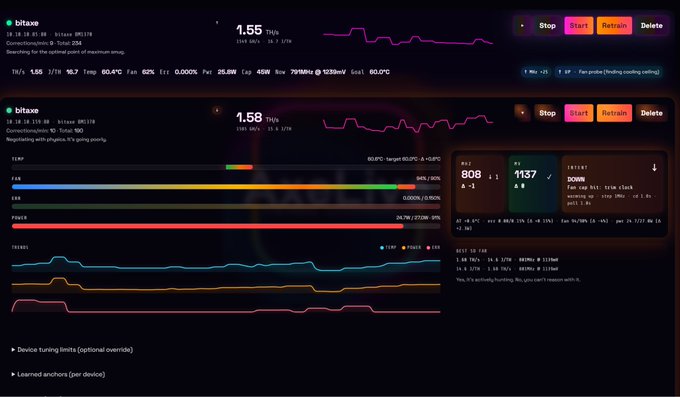
L'interface unifiée à thème sombre affiche les options de navigation : [ ⚡ Bench ] [ 🏠 Shed ] [ 🎱 Pool ]. Des modules de surveillance en temps réel affichent les appareils connectés, la chronologie du hashrate, la consommation électrique et les relevés de température.
L'interface du moteur Auto-Tune propose des contrôles de scan et d'optimisation pour les mineurs connectés. Des fonctions de sécurité protègent les appareils lors des opérations de tuning.
Configuration d'AxeBench pour les modèles Bitaxe
La configuration de la suite AxeBench varie selon le modèle de mineur. Le moteur Auto-Tune v3.0 simplifie les procédures de configuration pour tous les appareils Bitaxe pris en charge.
Configuration du NerdQaxe++ Rev6 et Rev6.1
La configuration du NerdQaxe++ Rev6/6.1 commence dans l'onglet [⚡ Bench]. Sélectionnez votre appareil dans le menu déroulant et cliquez sur « Connect ». Le moteur Auto-Tune détecte automatiquement les versions matérielles. Les modèles Rev6 nécessitent l'activation du « Safe Mode » lors de la configuration initiale. Les appareils Rev6.1 fonctionnent immédiatement avec les paramètres de tuning standard.
Connexion du NerdOctaxe et du NerdQaxe++
Les appareils NerdOctaxe utilisent la section [🏠 Shed] pour la configuration multi-mineurs. La connexion déclenche des tests de stabilité automatiques. Les modèles NerdQaxe++ utilisent des profils d'appareil affinés qui optimisent les performances tout en maintenant les limites thermiques.
Configuration de l'Avalon Nano 3S et du Mini 3
L'Avalon Nano 3S nécessite la sélection du « Mode avancé » dans les paramètres. Les paramètres de tension fonctionnent de manière optimale entre 0,38 et 0,42 V pour une efficacité maximale. Les modèles Mini 3 bénéficient de l'activation du Quiet Tune, qui assure une gestion thermique supérieure lors d'un fonctionnement continu.
Paramètres de tuning de l'Avalon Q
Les mineurs Avalon Q utilisent des capacités avancées de prédiction thermique dans AxeBench v3.0. Les réglages de puissance s'ajustent de manière incrémentale, en démarrant à 80% de la capacité jusqu'à la confirmation de la stabilité. Le système enregistre les configurations optimisées dans les profils d'appareil après la fin du benchmarking.
Surveillance des performances avec AxeBTC, AxeDGB et AxeBCH
Le Live Monitoring Cockpit suit les performances des mineurs tunés via des flux de données en temps réel. Les modules AxeBTC, AxeDGB et AxeBCH affichent les chronologies du hashrate, la consommation électrique et les métriques de température. L'interface AxePool se connecte directement aux pools de minage en solo sans configuration supplémentaire. La protection thermique maintient la sécurité de fonctionnement en interrompant les processus lorsque les températures dépassent 65,9°C.

Conclusion
AxeBench Suite v3.0 fournit les outils essentiels pour des opérations de minage Bitaxe professionnelles. Le moteur Auto-Tune optimise les performances sur les appareils des séries Supra, Ultra, Hex, Gamma et NerdQAxe avec des protocoles de sécurité améliorés et une meilleure gestion thermique.
La flexibilité de la plateforme prend en charge les installations Windows, Linux et Umbrel. L'interface unifiée gère les mineurs individuels ou les flottes complètes grâce à la surveillance en temps réel du hashrate, de la consommation électrique et des métriques de température. Les modules spécialisés AxeBTC, AxeBCH et AxeDGB permettent des connexions directes aux pools de minage en solo.
Les profils d'appareil et la prédiction thermique protègent le matériel de minage tout en maximisant les performances. Le système interrompt automatiquement le fonctionnement à 65,9°C pour prévenir les dommages thermiques. La logique PSU et la cartographie des tensions garantissent un fonctionnement stable lors des longues périodes de minage.
Une configuration et une surveillance appropriées déterminent le succès du minage au-delà du simple choix du matériel. AxeBench Suite offre ces capacités grâce à son moteur de tuning et son interface de surveillance. Commencez la mise en œuvre avec votre modèle Bitaxe spécifique pour atteindre une efficacité de minage optimale.
Points clés à retenir
Maîtrisez le processus de configuration essentiel d'AxeBench Suite pour débloquer jusqu'à 60% de meilleure efficacité de minage sur vos appareils Bitaxe grâce à une configuration et une surveillance appropriées.
• Le moteur Auto-Tune d'AxeBench Suite v3.0 offre un benchmarking 60% plus rapide avec une cartographie des tensions plus intelligente et des fonctions de sécurité renforcées sur tous les modèles Bitaxe.
• L'installation est flexible selon la plateforme : Windows ne nécessite aucune dépendance (EXE autonome), Linux prend en charge WSL, et Umbrel requiert 4 Go de RAM avec un accès au Community Store.
• La compatibilité des appareils couvre l'écosystème Bitaxe complet, incluant les séries Supra, Ultra, Hex, Gamma et la famille NerdQAxe avec des profils optimisés pour chaque modèle.
• L'intégration Umbrel assure une gestion du minage en continu via les modules AxeBTC, AxeBCH et AxeDGB pour les opérations de pools de minage en solo.
• La surveillance en temps réel prévient les dommages matériels grâce à une protection thermique qui interrompt automatiquement le fonctionnement à 65,9°C tout en suivant le hashrate et la consommation électrique.
L'interface unifiée à thème sombre avec la navigation [⚡ Bench] [🏠 Shed] [🎱 Pool] facilite la gestion des mineurs individuels ou de flottes entières, tandis que le Live Monitoring Cockpit garantit des performances optimales grâce à une surveillance continue de votre investissement en minage.
FAQ
Q1. Comment installer AxeBench Suite sur mon nœud Umbrel ? Pour installer AxeBench Suite sur Umbrel, accédez au Community Store, ajoutez l'URL du dépôt, puis installez les composants souhaités depuis les listes d'applications. Assurez-vous que votre Umbrel OS est en version 0.5.0 ou supérieure et que vous disposez d'au moins 4 Go de RAM et 10 Go d'espace de stockage libre.
Q2. Quels modèles de mineurs Bitaxe sont compatibles avec AxeBench Suite v3.0 ? AxeBench Suite v3.0 prend en charge une large gamme de mineurs Bitaxe, notamment les séries Supra, Ultra, Max, Hex, Gamma (601/602) et la famille NerdQAxe (NerdQAxe standard, QAxe+ et QAxe++). Chaque modèle dispose de profils d'appareil optimisés pour une efficacité maximale.
Q3. Comment le moteur Auto-Tune d'AxeBench Suite v3.0 améliore-t-il les performances de minage ? Le moteur Auto-Tune de la v3.0 offre un benchmarking jusqu'à 60% plus rapide, une meilleure détection des paliers et une cartographie plus intelligente des tensions et fréquences. Il maintient une logique de sécurité renforcée pour protéger votre investissement tout en optimisant les performances sur tous les modèles Bitaxe pris en charge.
Q4. Puis-je surveiller les performances de mes mineurs Bitaxe en temps réel avec AxeBench Suite ? Oui, AxeBench Suite propose une surveillance en temps réel via son Live Monitoring Cockpit. Vous pouvez suivre les chronologies du hashrate, les métriques de consommation électrique et les relevés de température de vos mineurs. Le système inclut également une protection thermique, interrompant automatiquement le fonctionnement si les températures dépassent 65,9°C.
Q5. Quelles sont les configurations système requises pour exécuter AxeBench Suite sur Windows ? Pour les utilisateurs Windows, AxeBench Suite nécessite Windows 10 ou une version ultérieure, 2 Go de RAM minimum (4 Go recommandés) et 500 Mo d'espace disque libre. Il se présente sous la forme d'un fichier EXE autonome, ne nécessitant aucune installation Python ni dépendances supplémentaires, ce qui facilite son installation et son utilisation.
Comments (0)