

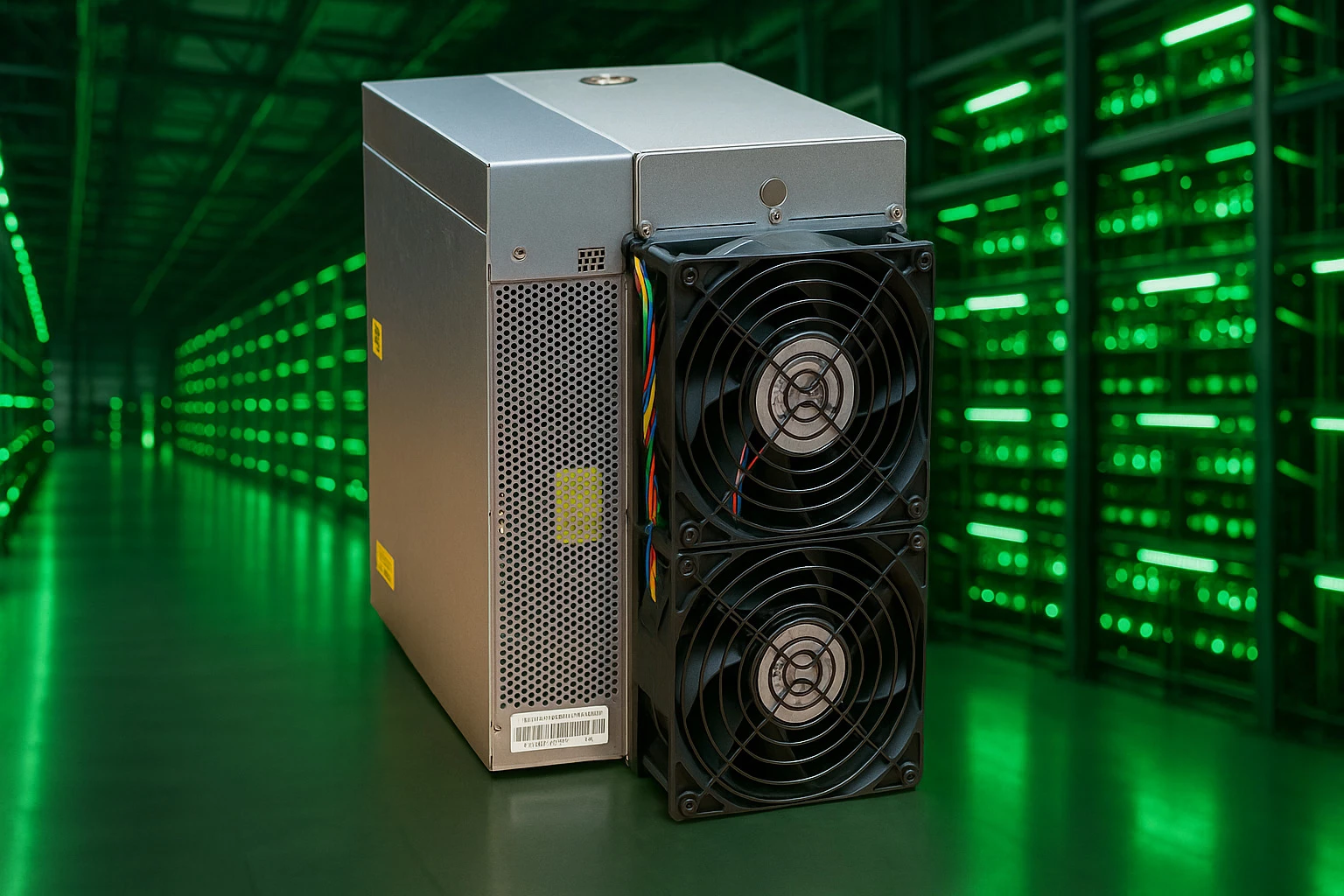
How to Update Antminer Firmware: Step-by-Step Guide for L9 & S21 Models
Setting up a new Antminer or updating its firmware is vital to get your ASIC miner running at peak performance.
Bitmain's lineup ranges from the powerful S21 to the high-efficiency L9 model, and the setup process might seem daunting at first. The company provides specific instructions for models like the T19 Hydro, S19 Pro, and Z15 servers, but the setup steps are quite similar for all Antminer devices. The right firmware update process matters just as much as the original setup. Custom firmware options can boost your mining performance, but you should know they might affect your warranty.
This detailed guide covers everything about setting up and updating your Antminer devices. We'll take you through simple installation steps and firmware updates to help you get started quickly!
Installing Antminer S21 and L9
Setting up your Antminer S21 or L9 needs careful attention to detail for the best performance.
Initial Setup Process:
Your Antminer needs a well-ventilated space with at least 2 feet of clearance around it to prevent overheating. The unit works best between 5-35°C (41-95°F) with 10-90% non-condensing humidity. Make sure you connect a properly grounded PSU with stable voltage input to your miner.
The next step involves connecting an Ethernet cable from your router to the miner. Note that Antminers don't support Wi-Fi connections. You'll need to download the IPReporter tool from Bitmain's official website to find your miner's IP address. Run it as Administrator and hold the IP Report button on your miner until it beeps.
The IP address you found goes into your browser. The default login credentials are username: "root" and password: "root". The control panel lets you:
-
Configure network settings (a static IP helps with stability)
-
Set up your preferred mining pool
-
Check server status including chip count, frequency, and temperature
-
Monitor hashrate performance
Your warranty becomes void if you try to disassemble the miner. Check your current firmware version before making any changes to ensure optimal performance.
How to Update Antminer Firmware
Regular updates to your Antminer firmware will give you the best performance and access to the latest features. The first step requires finding your miner on the network.
The IP Reporter tool helps locate your Antminer's IP address. Just press the "IP Report" button and wait for the indicator lights to flash. Your browser (Chrome or Firefox works best) needs this IP address. Log in using the default credentials - "root" for both username and password.
The system dropdown menu directs you to "Firmware Upgrade". Check your current version on the dashboard before downloading any new firmware.
Bitmain's website (bitmain.com) hosts the official firmware. Head to "Customer Support," then "Firmware Download," and pick your specific model. The downloaded file doesn't need decompression.
Here's how to update:
-
Click "Upload" in the firmware interface
-
Select the downloaded firmware file
-
Confirm it's correct for your model
-
Click "Upgrade Firmware"
Your miner will take about 1-2 minutes to complete the update and reboot automatically. Keep your miner powered during the upgrade to prevent system file corruption.
A quick check of the firmware version confirms your successful installation.
Using Custom Firmware and Overclocking
Custom firmware adds powerful features to Antminer devices beyond regular updates. Popular choices like Braiins OS+, Hiveon ASIC, and VNish give users better hash rate control, precise tuning options, and stronger security measures.
These alternatives come with risks - they void manufacturer warranties. They might also create security gaps if you download them from sketchy sources. This could lead to stability problems or hardware damage from pushing the overclock too far.
Most custom firmware lets miners overclock their devices past factory settings to get better results. To name just one example, Hiveon ASIC firmware can boost hashrate by up to 30% while using less electricity.
Here's the quickest way to safely overclock with custom firmware:
-
Back up your original firmware before changes
-
Increase voltage and clock speed step by step as you watch performance
-
Set up good cooling systems to keep temperatures steady
-
Check stability before running long-term
Results vary between models, but Braiins OS shows great improvements on newer ones. The S21 Pro hits 265 TH/s (13% more hashrate) with just 1% efficiency loss. The L9 reaches 17.78 GH/s at 230.09 J/GH with a 10% overclock.
Premium firmware's autotuning features optimize each chip on its own. This maximizes output while protecting weaker components from damage.
Conclusion
Your Antminer devices need the latest firmware to improve mining efficiency and profitability. In this piece, we got into the most important steps to set up both S21 and L9 models and update their firmware. Custom firmware options like Braiins OS+ and Hiveon ASIC can boost performance through overclocking, though this might void manufacturer's warranties.
The process looks technical initially, but these step-by-step instructions make firmware updates a simple part of your mining maintenance routine. Proper cooling and ventilation are vital, especially if you overclock your devices beyond factory settings.
Custom firmware provides compelling benefits. You should think over performance gains against warranty issues and stability risks. The system files could get corrupted and damage your valuable mining equipment if you disconnect power during firmware updates.
The rewards can be substantial for miners who use these optimization techniques with mineshop.eu. Better hashrates and energy efficiency are just the start. Peak performance comes from proper setup and regular firmware maintenance, whether you're a mining veteran or starting with your first ASIC device.
Key Takeaways
Master the essential steps to optimize your Antminer's performance through proper setup and firmware management:
• Always backup original firmware before updates - Download firmware from official Bitmain sources and never disconnect power during the 1-2 minute upgrade process to prevent system corruption.
• Proper installation requires adequate ventilation - Maintain 2+ feet clearance around units, operate between 5-35°C, and use IPReporter tool to locate your miner's network address.
• Custom firmware can boost hashrate by up to 30% - Options like Braiins OS+ and Hiveon ASIC offer overclocking capabilities but void manufacturer warranties and require careful temperature monitoring.
• Regular firmware updates maximize mining efficiency - Access the web interface using default credentials (root/root), navigate to System > Firmware Upgrade, and verify successful installation post-reboot.
• Safe overclocking demands gradual adjustments - Increase voltage and clock speeds incrementally while implementing efficient cooling systems and testing stability before extended operation.
Whether you're running an S21 or L9 model, following these practices ensures your mining operation maintains peak performance while minimizing risks to your valuable ASIC hardware investment.
FAQs
Q1. How do I update the firmware on my Antminer? To update your Antminer firmware, access the miner's web interface, navigate to the System menu, select "Firmware Upgrade," upload the new firmware file, and click "Upgrade Firmware." The process takes 1-2 minutes, during which the miner will automatically reboot.
Q2. What precautions should I take when updating Antminer firmware? Always download firmware from official sources, back up your original firmware before updating, and never disconnect power during the upgrade process to prevent system file corruption. Ensure your miner is in a well-ventilated area with stable power supply.
Q3. Can I use custom firmware on my Antminer? Yes, custom firmware options like Braiins OS+ and Hiveon ASIC are available for Antminers. They can offer enhanced features and performance, but be aware that using custom firmware typically voids the manufacturer's warranty.
Q4. How can I find my Antminer's IP address? Use the IPReporter tool from Bitmain's website. Run it as Administrator, then press and hold the IP Report button on your Antminer until it beeps. The tool will display the miner's IP address, which you can then use to access the web interface.
Q5. Is overclocking safe for my Antminer? Overclocking can increase your Antminer's performance but comes with risks. If you choose to overclock, do so gradually, monitor temperatures closely, ensure proper cooling, and test for stability. Be aware that overclocking may void your warranty and potentially reduce your device's lifespan if not done carefully.
Related Blog
RTX PRO 6000 vs RTX PRO 6000D: Care GPU Blackwell să cumperi în 2026?
Sep 7, 2026 by Guntis Vitolins
Mineshop
RTX PRO 6000 vs RTX PRO 6000D: Kuru Blackwell GPU iegādāties 2026. gadā?
Sep 7, 2026 by Guntis Vitolins
Mineshop
RTX PRO 6000 vs RTX PRO 6000D: Który GPU Blackwell wybrać w 2026?
Sep 7, 2026 by Guntis Vitolins
Mineshop
RTX PRO 6000 vs RTX PRO 6000D: Welches Blackwell GPU kaufen Sie 2026?
Sep 7, 2026 by Guntis Vitolins
Mineshop