

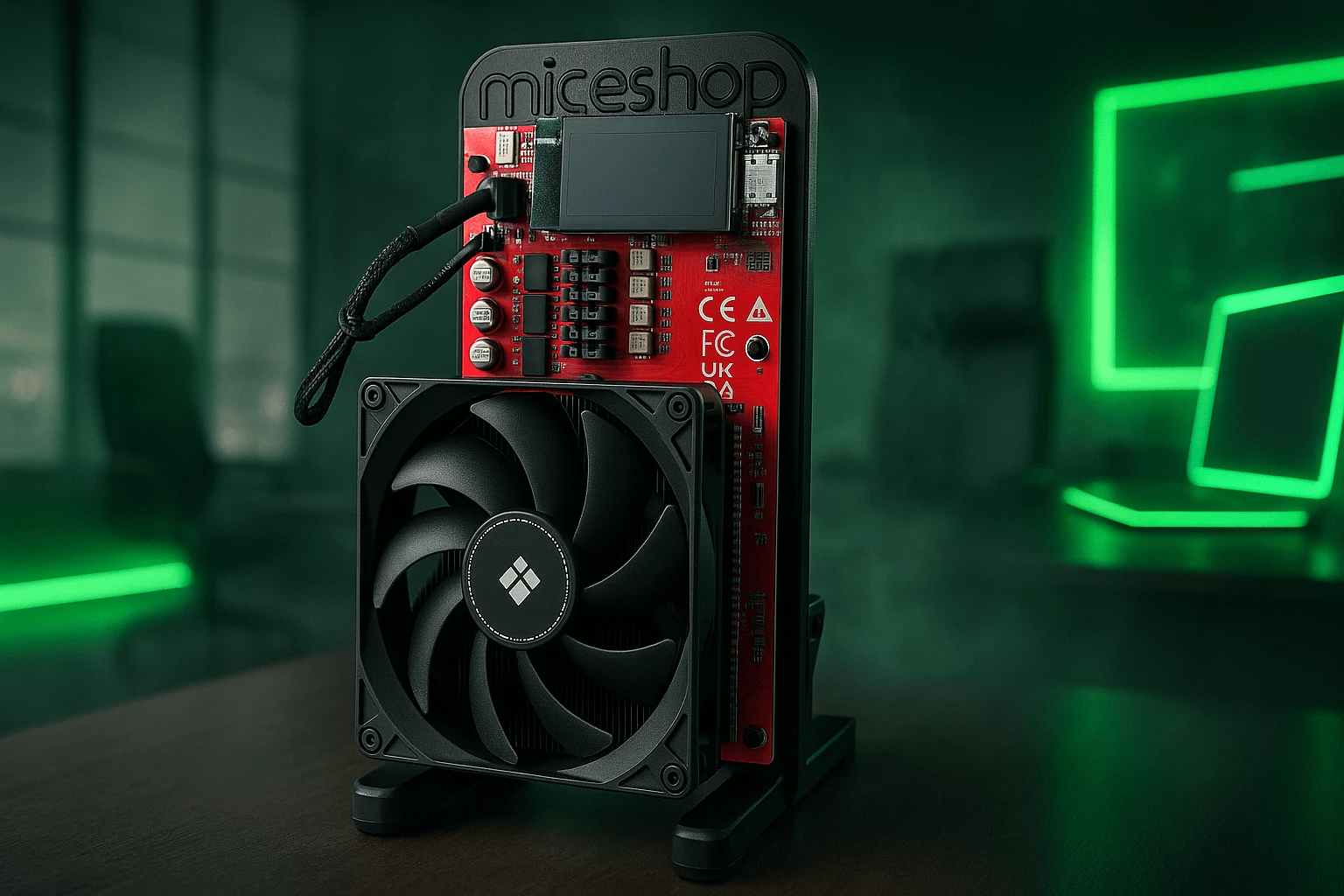
How to Fix NerdQaxe++ Errors: Quick Solutions That Actually Work
Having trouble with NerdQaxe++ errors in your home mining setup? You're not alone. The NerdQaxe++ has created quite a buzz as a home ASIC miner that could match its impressive specs.
Our detailed 30-day test of this compact miner found that there was a range of common problems that can stop your mining operations. The notorious PSU error #0000015 comes from heatsink gaps, while overheating and sudden shutdowns can hurt your mining output. Our tests showed the unit pulls about 80W at full power, not the 60W listed in official specs. On top of that, it takes just small NerdQaxe++ errors to cut into your profits. The test unit mined about 0.00023 BTC in 30 days with daily power costs of €0.14.
This piece offers quick, tested solutions to get your miner running at its best. We've got step-by-step fixes for everything from thermal paste problems to pin arrangement issues and connection failures. These solutions come from ground testing and real experience.
Common NerdQaxe++ Errors and What They Mean
Your NerdQaxe++ might give you headaches if it's not working right. You can save hours of debugging time by learning to spot common error patterns in these compact miners.
PSU error #0000015 explained
The PSU error #0000015 shows up as a "Guru Meditation" message on your display screen. This error happens because of a gap between the chip and heatsink. Moving your miner around can make the heatsink slip a bit and break the thermal contact. The power supply unit can't regulate voltage properly and shuts down to protect itself.
Overheating and thermal shutdowns
NerdQaxe++ miners keep track of both ASIC and VREG temperatures. The VREG temperature matters most for BM1370 ASIC processors. Your miner will slow down or shut off completely if these parts get too hot. Users report temperature drops from 60°C+ to 48.4°C just by adding external cooling. These thermal shutdowns happen more often in rooms that run hot.
Wi-Fi and network connection failures
A "No AP Found" message usually means you've got the wrong WiFi credentials. Your miner might connect but show high rejection rates because of unstable network or ISP issues. The NerdQaxe++ works best with 2.4GHz networks. Users found their connection problems went away after setting up a network that only uses 2.4GHz.
Display not showing hashrate
A display showing "0 H/s" while connected to WiFi and a mining pool points to power or thermal problems. Your miner connects but can't start the mining process. This often comes with PSU errors in the logs. You'll need to check your firmware version and power supply.
Fan noise or failure symptoms
Strange fan noises or complete fan failures warn you about upcoming problems. The built-in cooling system doesn't handle heat well in spaces with poor airflow. A good fan should run at steady speeds based on temperature. Fan problems can trigger the automatic control system and cause fuse issues in NerdQaxe+ and NerdQaxe++ models.
Diagnosing the Root Cause
The true cause of your NerdQaxe++ problems needs methodical testing instead of random fixes. A systematic diagnostic approach will help you pinpoint the exact cause of your mining troubles.
Check for loose heatsink or thermal gap
Power off your miner completely before inspection. The heatsink needs careful removal to check the thermal paste condition. PSU error #0000015 happens because shipping vibrations create gaps between the ASIC chip and heatsink. A minor separation can make temperature sensors misread and trigger automatic shutdowns. Dried, cracked, or uneven thermal paste application causes most overheating issues. Many users find that reseating the heatsink fixes their problems completely.
Inspect pin alignment and slot connection
The heatsink inspection should lead to checking all pins and connections. Misaligned pins create a 3.3V short circuit that causes erratic behavior or complete failure. Connection points need inspection for overheating or burning signs. Pins must sit firmly in their slots without wobbling. Slightly bent pins cause intermittent issues that become hard to diagnose. Quality connections directly affect power delivery to critical components.
Monitor temperature and voltage readings
Your miner's operating system shows immediate temperature data through its IP address. The NerdQaxe++ tracks both ASIC and VREG temperatures - VREG readings matter more for BM1370 ASIC processors. Firmware version 1.0.29's new PID feature lets you set target temperatures and adjusts fan speeds automatically. The best operation keeps ASIC temperatures around 60-62°C. Readings above 70°C point to cooling problems or thermal paste issues.
Use the display to identify error codes
The onboard display shows important diagnostic information beyond hashrate. Error codes flash briefly before shutdowns happen. A zero hashrate display (0.0 GH/s) with WiFi connection usually means power delivery problems, not network issues. "Overheat Mode" appears on the display at temperatures above 75°C. The device's AxeOS interface provides detailed logs and temperature graphs through the IP address shown on the display.
How to Fix NerdQaxe++ Errors Step-by-Step
Let's take a closer look at fixing these common NerdQaxe++ problems with practical solutions that will restore your miner's optimal performance.
Fixing PSU error #0000015 with thermal paste reapplication
A gap between the chip and heatsink causes the PSU error #0000015. Here's how to fix it:
-
Power down and disconnect your miner
-
Remove the heatsink screws carefully
-
Clean off old paste with isopropyl alcohol (90%+)
-
Apply a pea-sized amount of high-quality thermal paste (6W+ like Arctic MX-4)
-
Reattach the heatsink with even pressure
Reinserting misaligned pins to avoid 3.3V short
Dangerous shorts can happen from misaligned pins. The solution is straightforward - squeeze the connector pins and check they sit properly. Your mounting brackets should be right-side up after transport to prevent gaps between heatsink and chip.
Resetting network settings for Wi-Fi issues
Double-check your credentials when you see "No AP Found" messages. The AxeOS dashboard needs a complete network settings reset. Network instability shows up as high rejection rates - a dedicated 2.4GHz network could give you better stability.
Cleaning dust and improving airflow
Your miner needs monthly dust removal to prevent overheating:
-
Use compressed air in short bursts
-
Hold fan blades still to prevent overspinning
-
Gently wipe surfaces with lint-free cloth
Updating firmware to resolve software bugs
The latest firmware versions bring essential improvements:
-
Access AxeOS dashboard settings
-
Check for latest releases
-
Download the esp-miner.bin file
-
Upload through the update firmware section
-
Verify success and test performance

Preventing Future Issues with Smart Setup
Proper maintenance routines help prevent NerdQaxe++ problems. These preventive steps can help you avoid frustrating PSU errors and performance problems.
Use Arctic MX-4 or similar 6W+ thermal paste
Quality thermal paste substantially affects ASIC temperature. Arctic MX-4 or MX-6 are recommended options for NerdQaxe++ miners. The thermal paste degrades with time, so you should replace it every 6-12 months. A thin layer works best since too much paste actually insulates rather than conducts heat.
Place miner in a cool, ventilated area
The device's placement can affect its lifespan substantially. Your device needs an open space with good airflow. When ambient temperatures rise, cooling systems work harder and components wear out faster. Keep your miner away from cramped, enclosed spaces that trap heat.
Secure heatsink screws after transport
Shipping vibrations often create gaps between chips and heatsinks. You should check and tighten all mounting hardware after receiving or moving your miner. The heatsink needs a gentle back and forth movement to ensure it sits properly.
Avoid overclocking without proper cooling
Overclocking can boost performance to 5.5TH/s (15% increase), but you should be careful. Test your stock settings for 1-2 hours before making any adjustments. Your hardware's lifespan shortens with excessive overclocking.
Regularly monitor hashrate and temperature
Early problem detection requires consistent monitoring. Watch temperature patterns—your miner works best when ASIC temperatures stay around 48-50°C. You should check for maintenance when unusual fluctuations occur.
Updated :
NerdQaxe++ completley dead not working.
most comon issue is that the fuse on PCB has blown(SMD fuse 8A) out and need to be replaced , please see the vide how to fix this issue:
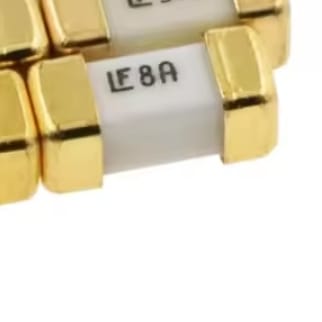
https://youtube.com/shorts/i7zyo042wbI
Conclusion
Your NerdQaxe++ miner needs careful attention to detail, but the payoff shows in steady mining performance. A few common problems cause most issues we've covered in this piece. That dreaded PSU error #0000015 usually points to a thermal gap problem - quality thermal paste like Arctic MX-4 fixes this quickly. Temperature control is crucial for long-term operation, especially since the actual power draw hits 80W instead of the rated 60W.
Basic upkeep prevents these problems effectively. Monthly dust cleanup, checking heatsink connections after moving the unit, and good airflow can extend your miner's life substantially. On top of that, regular firmware updates fix many software bugs that cut into mining efficiency.
The line between frustrating and smooth mining comes down to taking these preventive steps. Our 30-day test found that there was a huge difference from small tweaks. Setting up a dedicated 2.4GHz network or adding extra cooling made the system run much better and more reliably. Your mining profits depend on fixing these issues right away.
These proven fixes will help you get the most out of your mining setup, whether you're fixing problems or buying new gear. Pick up your NerdQaxe++ at mineshop.eu today and use these practical solutions for the best performance from the start. Good care keeps your compact miner running strong, even when conditions aren't ideal.
Key Takeaways
Master these essential fixes to keep your NerdQaxe++ miner running smoothly and maximize your mining profitability.
• PSU error #0000015 is usually thermal paste failure - Reapply Arctic MX-4 or similar 6W+ thermal paste to fix gaps between chip and heatsink
• Temperature monitoring prevents costly shutdowns - Maintain ASIC temperatures around 48-60°C and use external cooling if needed to avoid thermal throttling
• Network issues require 2.4GHz WiFi setup - Create dedicated 2.4GHz network and reset credentials to resolve "No AP Found" errors and high rejection rates
• Monthly maintenance prevents major problems - Clean dust buildup, check heatsink connections after transport, and update firmware regularly
• Proper placement doubles miner lifespan - Position in cool, ventilated areas and avoid overclocking without adequate cooling to prevent hardware damage
The key to successful NerdQaxe++ operation lies in proactive maintenance rather than reactive repairs. Most failures trace back to thermal management issues, making quality thermal paste and proper ventilation your best investments for consistent mining performance.
FAQs
Q1. What causes the PSU error #0000015 on NerdQaxe++ miners? The PSU error #0000015 typically occurs due to a gap between the chip and heatsink, often caused by vibrations during shipping. This gap can lead to improper voltage regulation and automatic shutdown as a protective measure.
Q2. How can I fix overheating issues with my NerdQaxe++ miner? To address overheating, ensure proper ventilation, clean dust regularly, and consider adding external cooling. Reapplying high-quality thermal paste like Arctic MX-4 can also significantly improve heat dissipation and maintain optimal operating temperatures.
Q3. Why is my NerdQaxe++ not connecting to Wi-Fi? Wi-Fi connection issues often stem from incorrect network credentials or incompatibility with 5GHz networks. Try resetting network settings and connecting to a dedicated 2.4GHz network, which is more compatible with the NerdQaxe++ miner.
Q4. What should I do if my NerdQaxe++ display shows 0 H/s (zero hashrate)? A zero hashrate display usually indicates power delivery or thermal issues. Check your power supply, ensure proper heatsink contact, and verify that your miner is correctly connected to both Wi-Fi and your chosen mining pool.
Q5. How often should I perform maintenance on my NerdQaxe++ miner? Regular maintenance is crucial for optimal performance. Clean dust monthly, check heatsink connections after any transport, and replace thermal paste every 6-12 months. Also, stay current with firmware updates to address potential software bugs affecting mining efficiency.
Related Blog
Solo Bitcoin ieguve mājās 2026. gadā
Jul 13, 2026 by Guntis Vitolins
Mineshop mini bitcoin miner
Canaan Avalon A15 Pro apskats: Labākais lielais mājas racējs 2026. gadā?
Jul 1, 2026 by Guntis Vitolins
mini bitcoin miner
Whatsminer M60S apskats: Mājas ieguves zvērs vai pārspīlējums?
Jun 30, 2026 by Guntis Vitolins
mini bitcoin miner
Antminer S21 XP apskats: Visefektīvākais mājas racējs 2026. gadā?
Jun 29, 2026 by Guntis Vitolins
mini bitcoin miner