

How to Use AxeOS: Complete Dashboard Guide for BitAxe and NerdQAxe

How to Use AxeOS: Complete Dashboard Guide for Bit...

How to Use AxeOS: Complete Dashboard Guide for BitAxe and NerdQAxe

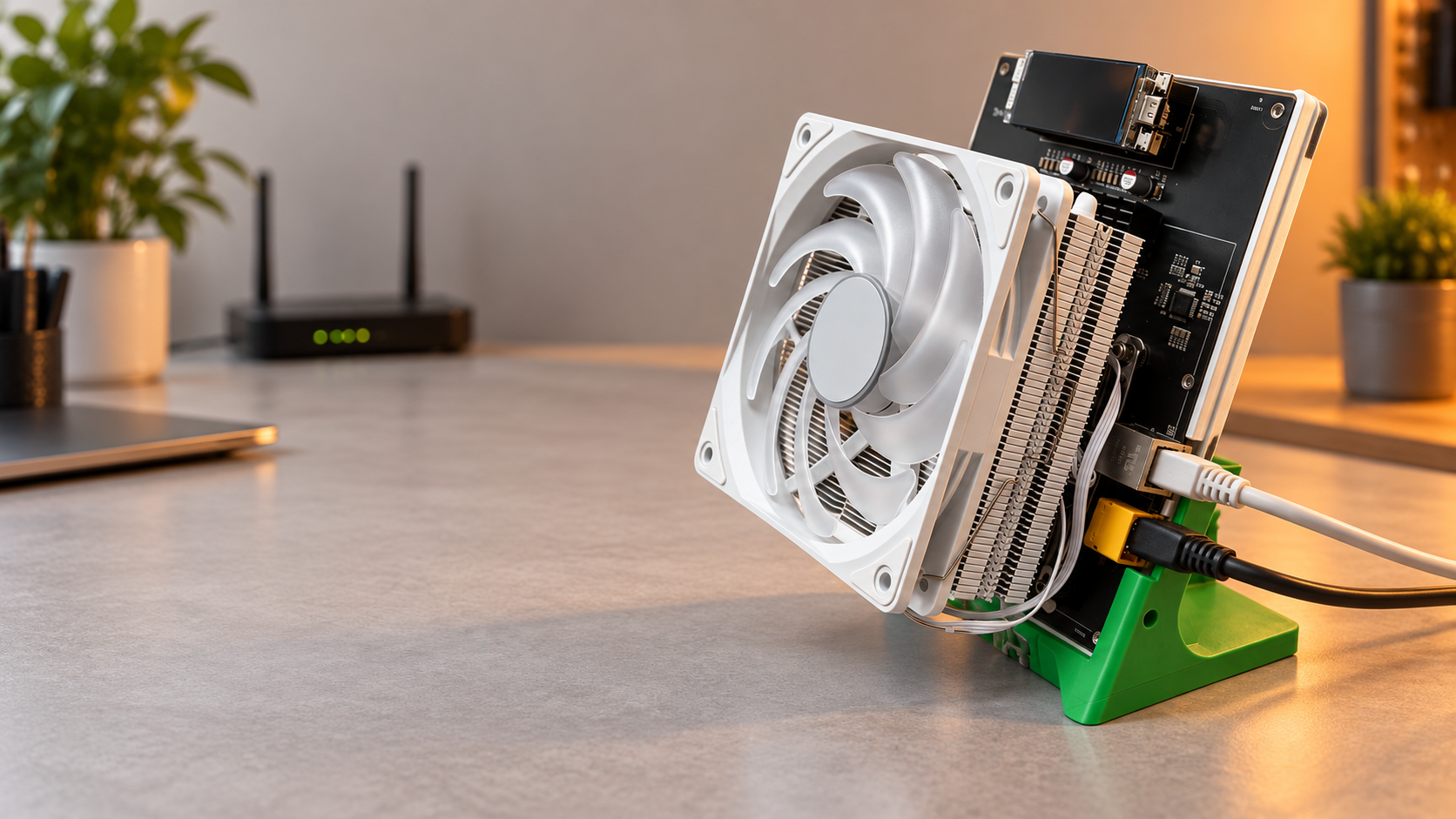
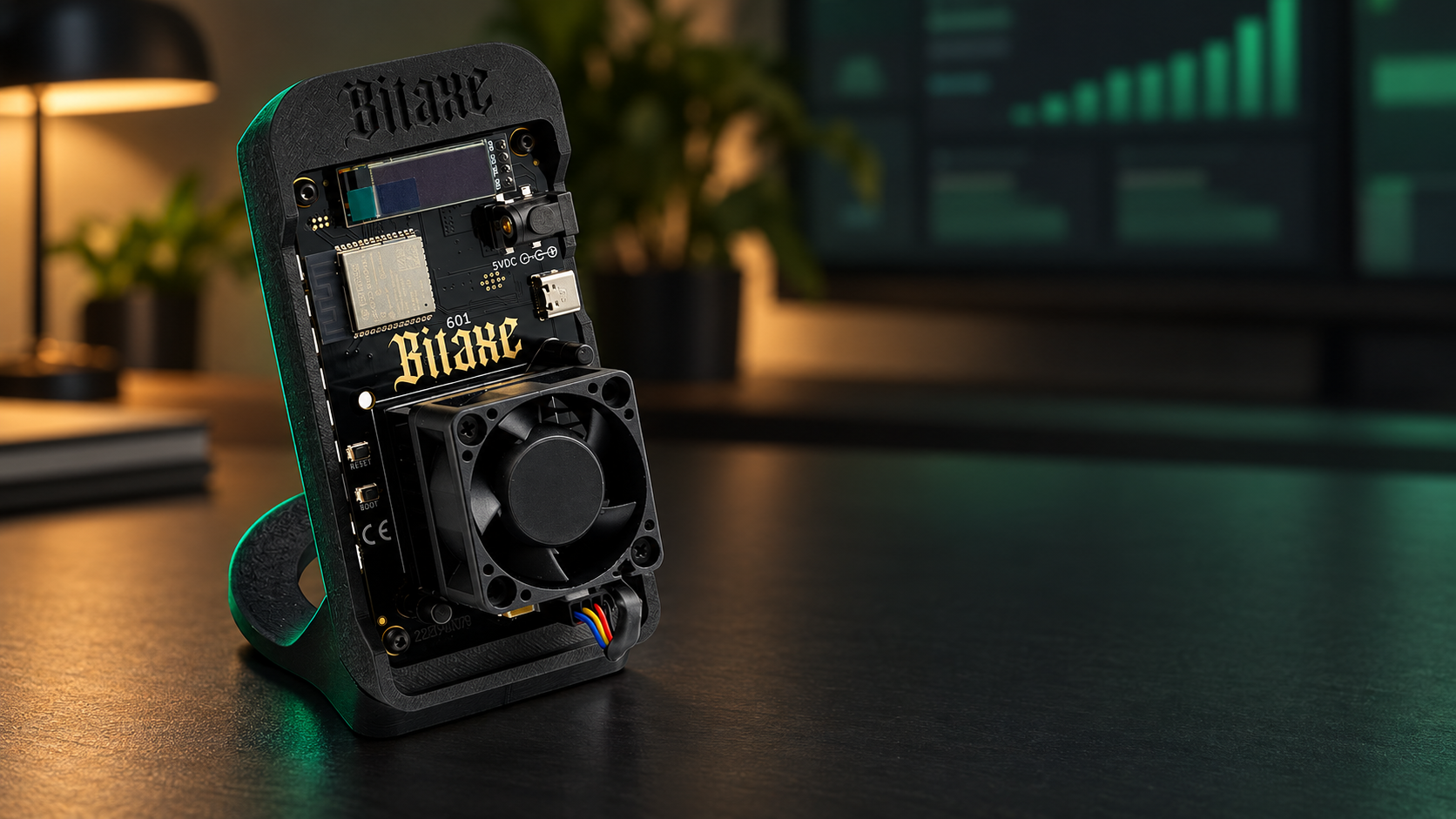
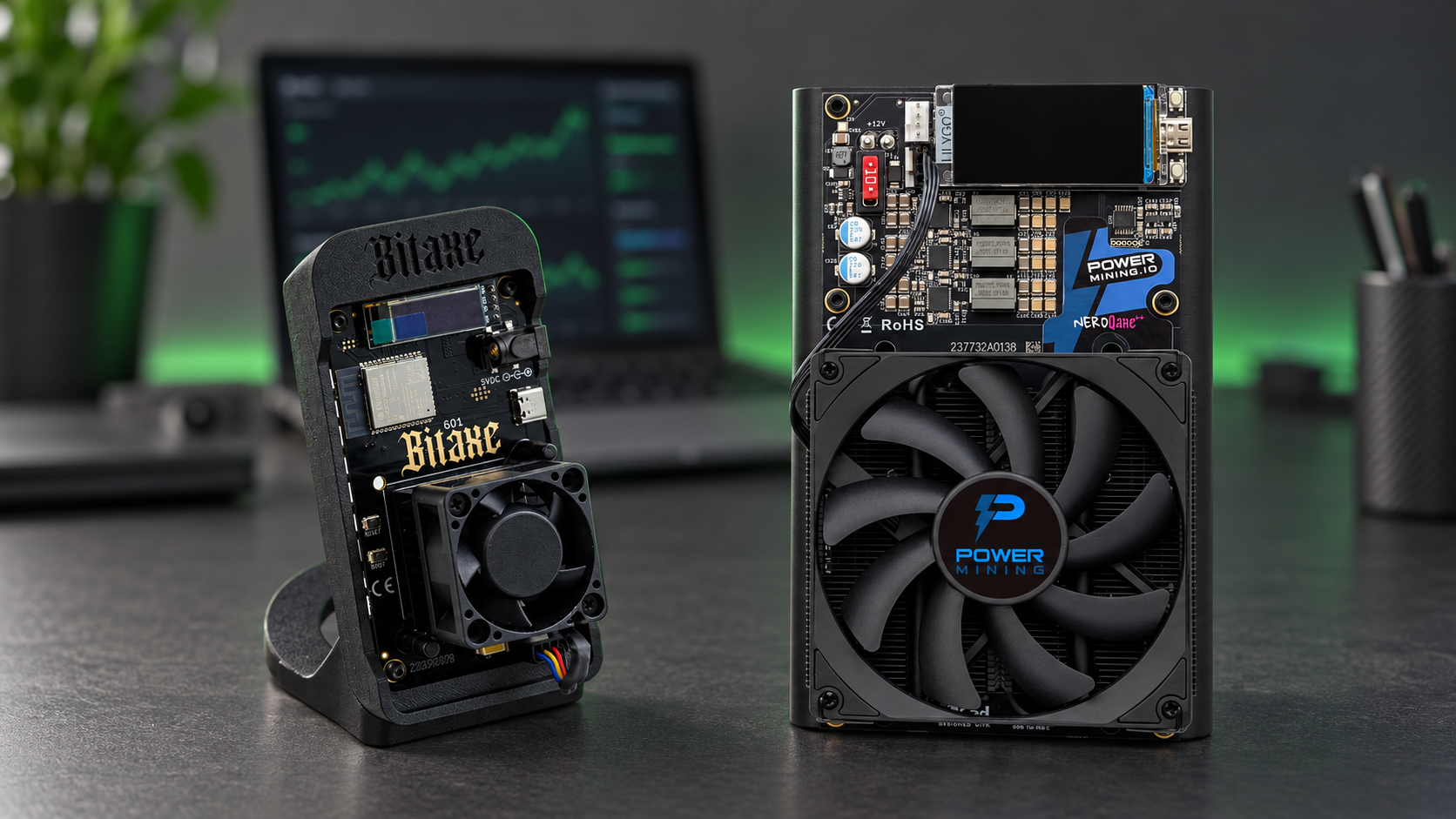
If you just received your BitAxe or NerdQAxe miner and you're staring at a blinking LED wondering what to do next, you're in exactly the right place. This guide walks you through every step of using AxeOS — the browser-based control interface built into these compact open-source miners — from first power-on all the way to confirmed pool connections and live hashrate monitoring. No command line, no coding, no prior experience required.

\n\n

AxeOS is the open-source web firmware interface developed by the Skot9000 / Proto.xyz project that powers the BitAxe and NerdQAxe family of single-chip Bitcoin miners. It runs entirely on the device and is accessible from any browser on your local network — think of it as the miner's own built-in control panel, covering everything from Wi-Fi credentials and mining pool configuration to chip frequency, voltage tuning, and real-time performance statistics.

\n\n

Before you begin, make sure you have everything listed in the section below. Mineshop.eu has been supplying European miners with genuine ASIC hardware since 2016, with EU warehouse stock in Ireland and fast DHL/FedEx delivery across all EU countries — so if you purchased your device from us, you can be confident it arrived pre-flashed with a stable AxeOS build and ready to configure straight out of the box.

\n\n

What You Need

\n
    \n
  • BitAxe or NerdQAxe miner (any variant: BitAxe Ultra, BitAxe Gamma, NerdQAxe+, etc.)
  • \n
  • USB-C power cable and a 5 V / 3 A (minimum) USB-C power adapter
  • \n
  • A 2.4 GHz Wi-Fi network with known SSID and password (5 GHz is not supported)
  • \n
  • A laptop, desktop, or smartphone with a modern web browser (Chrome, Firefox, or Safari)
  • \n
  • A mining pool account — CKPool, OCEAN, or Braiins Pool all work well for solo or low-hashrate setups
  • \n
  • Your pool's Stratum URL and port number (found in your pool's "Connect" or "Worker" section)
  • \n
  • A Bitcoin wallet address if you are mining to a personal wallet (required for CKPool solo)
  • \n
  • Both your miner and your computer connected to the same local Wi-Fi or LAN network
  • \n
\n\n

Step-by-Step Guide

\n\n

Step 1: Power On Your Miner

\n

Connect your USB-C power cable to the miner and plug it into your power adapter. The device will boot immediately — you should see the onboard LED flash briefly and then settle into a steady or slow-pulse pattern depending on your firmware version. The fan (if fitted) will spin up within a few seconds. Do not disconnect power during boot; the initial startup sequence takes roughly 15–20 seconds to complete. Once the LED stabilises, the device is ready to broadcast its own Wi-Fi access point for first-time configuration.

\n\n

Step 2: Connect to the BitAxe Access Point

\n

On your phone or laptop, open your Wi-Fi settings and look for a network named something like BitAxe_XXXXXX or NerdQAxe_XXXXXX (where XXXXXX is a unique hex identifier). Connect to this network — there is no password required. Your device will briefly show "no internet" in the network status bar, which is completely normal at this stage. Once connected, open your browser and navigate to http://192.168.4.1 to reach the initial Wi-Fi setup page.

\n\n

Step 3: Enter Your Home Wi-Fi Credentials

\n

On the setup page you will see two fields: SSID (your home Wi-Fi network name) and Password. Type both carefully — Wi-Fi credentials are case-sensitive. Click Save or Connect. The miner will reboot automatically, disconnect from its own access point, and attempt to join your home network. Wait 30–45 seconds. Your phone or laptop will also drop the BitAxe AP connection and return to your normal Wi-Fi; this is expected.

\n\n

Step 4: Find Your Miner's Local IP Address

\n

Once your miner has joined your home network, you need its local IP address to access the AxeOS dashboard. The easiest method is to log in to your router's admin panel (usually at 192.168.1.1 or 192.168.0.1) and look in the connected devices or DHCP client list for a device named bitaxe or nerdqaxe. Alternatively, you can use a free network scanner app such as Fing on your smartphone. Note the IP address shown — it will look something like 192.168.1.105. According to the Proto.xyz project documentation, mDNS is also supported on most networks, meaning you can try navigating directly to http://bitaxe.local in your browser as a shortcut.

\n\n

Step 5: Open the AxeOS Dashboard

\n

Type your miner's local IP address into your browser's address bar (e.g. http://192.168.1.105) and press Enter. The AxeOS dashboard will load — you will see a clean interface showing the miner's current hashrate, chip temperature, fan speed, uptime, and pool connection status. If the page does not load, double-check that your computer is on the same Wi-Fi network as the miner and that you copied the IP correctly. There is no login or password required to access the dashboard by default.

\n\n

Step 6: Configure Your Mining Pool

\n

Click the Settings tab (sometimes shown as a gear icon) in the AxeOS navigation. You will see fields for Pool URL, Port, Worker/Username, and Password. Enter your pool's Stratum address in the Pool URL field — for example, stratum+tcp://solo.ckpool.org for CKPool solo. Set the port number as provided by your pool (CKPool solo uses port 3333). In the Worker field, enter your Bitcoin wallet address (for CKPool) or your pool username and worker name in the format username.workername for other pools. The password field can typically be left as x or left blank. Click Save when done.

\n\n

Step 7: Reboot the Miner and Verify Pool Connection

\n

After saving your pool settings, click the Restart button in AxeOS (found at the bottom of the Settings page or in the system menu). The miner will reboot in about 20 seconds. Navigate back to the main Dashboard tab. Within one to two minutes of restart, the Pool Status indicator should turn green and display Connected alongside the pool URL you entered. If it remains red or shows "Disconnected," revisit Step 6 and verify your Stratum URL and port are correct — a typo in the URL is the most common cause of connection failure.

\n\n

Step 8: Monitor Hashrate and Temperature

\n

With the pool connected, the dashboard's main screen now shows live mining data. Key metrics to watch include Hashrate (shown in GH/s), Best Difficulty (the highest difficulty share found since last boot), Chip Temperature, and Fan RPM. According to data from asicminersprofitability.com, solo miners with BitAxe-class devices benefit most from maximising uptime and stable pool connections rather than chasing marginal hashrate gains through aggressive overclocking. A healthy chip temperature is typically below 65 °C; anything consistently above 70 °C warrants attention to airflow or frequency settings.

\n\n

Step 9: Tune Frequency and Voltage (Optional)

\n

AxeOS allows you to adjust the ASIC chip's core frequency (in MHz) and core voltage (in mV) from the Settings tab. These settings directly affect your hashrate, power draw, and heat output. If you are a first-time user, leave these at their default values initially and allow the miner to run for 24 hours to establish a stable baseline. If you do wish to experiment, increase frequency in small increments of 25 MHz, save, reboot, and monitor chip temperature before making further changes. Reducing voltage slightly can improve efficiency but may cause the chip to produce invalid shares — watch the Reject Rate on the dashboard.

\n\n

Step 10: Save and Name Your Device

\n

In the Settings tab you will also find a Hostname field. Giving your miner a unique name (e.g. "bitaxe-desk" or "nerdqaxe-01") makes it easier to identify on your network, especially if you run multiple units. After entering a hostname, save the setting and reboot. From this point on, you can try accessing the dashboard via http://your-hostname.local from any browser on the same network, in addition to the IP address method.

\n\n

Quick Reference Table

\n\n \n \n \n \n \n \n \n \n \n \n \n \n \n \n \n \n \n \n \n \n \n \n \n \n \n \n \n \n \n \n \n \n \n \n \n \n \n \n \n \n \n \n \n \n \n \n \n \n \n \n \n \n
Setting / FeatureBitAxe (Ultra/Gamma)NerdQAxe+Recommended Default
Default AxeOS Access URLhttp://bitaxe.local or IPhttp://nerdqaxe.local or IPUse IP address for reliability
Wi-Fi Band Supported2.4 GHz only2.4 GHz only2.4 GHz network required
Default Stratum Port (CKPool)333333333333
Typical Chip Temp Range50–65 °C50–65 °CKeep below 65 °C
Hashrate Class~500 GH/s (Gamma)~1–2 TH/s (quad chip)Check your specific model
Recommended PoolsCKPool, OCEAN, BraiinsCKPool, OCEAN, BraiinsCKPool Solo for solo mining
Power InputUSB-C 5 V / 3 A+USB-C 5 V / 3–5 AUse quality USB-C adapter
\n\n

Common Issues and Fixes

\n\n

Issue 1: Cannot Find the BitAxe Access Point

\n

If the BitAxe_XXXXXX Wi-Fi network does not appear after powering on, the device may not have fully booted or may already be configured to join a saved network. Hold the onboard boot/reset button for 5–10 seconds until the LED flashes rapidly — this clears the Wi-Fi configuration and re-enables the access point mode. Refresh your Wi-Fi list and the AP should reappear.

\n\n

Issue 2: AxeOS Dashboard Will Not Load

\n

If navigating to the miner's IP returns a blank page or a timeout error, confirm that your computer and the miner are on the same subnet (e.g. both on 192.168.1.x). Try a different browser or disable any VPN running on your device, as VPNs can block local network access. Also verify the IP address is still current — routers sometimes reassign IPs after a reboot, so check your router's DHCP list again.

\n\n

Issue 3: Pool Shows "Disconnected" After Save

\n

The most common cause is a malformed Stratum URL. Ensure the URL starts with stratum+tcp:// and contains no trailing slashes or spaces. Double-check the port number against your pool's official connection page and confirm your worker name or wallet address is correctly formatted. Save the settings and use the Restart button rather than physically unplugging the device.

\n\n

Issue 4: Chip Temperature Above 70 °C

\n

High temperatures are usually caused by insufficient airflow around the device. Move the miner to a well-ventilated location away from walls or enclosed spaces. If you have manually increased the core frequency, reduce it by 25–50 MHz and reboot. You can also navigate to Settings and increase the fan speed target if your model supports manual fan control.

\n\n

Issue 5: High Reject Rate on Pool

\n

A reject rate above 2–3% often indicates the core voltage is too low for the frequency you have set, causing the chip to produce invalid work. In AxeOS Settings, try increasing core voltage by 10–20 mV while keeping frequency constant, then reboot and monitor. If the issue persists, restore the device to its default frequency and voltage settings using the Reset to Defaults option in the Settings tab.

\n\n

Issue 6: Miner Keeps Rebooting or Crashing

\n

Spontaneous reboots are almost always a power supply problem. Ensure your USB-C adapter is rated for at least 3 A (5 A for NerdQAxe+ with multiple chips) and that the USB-C cable is high-quality and undamaged. Cheap phone charger cables can cause voltage sag that triggers the ESP32 watchdog and forces a reboot. Replace the cable and adapter with rated alternatives and observe stability over the next hour.

\n\n

Frequently Asked Questions

\n\n

What is AxeOS and do I need to install it?

\n

AxeOS is the open-source web firmware that comes pre-installed on BitAxe and NerdQAxe devices. You do not need to install or flash anything unless you want to upgrade to a newer version. Devices purchased from Mineshop.eu's mini Bitcoin miners range ship with a stable, tested AxeOS build already on the device.

\n\n

Can I mine Bitcoin directly to my own wallet without a pool account?

\n

Yes — with CKPool's solo option, you enter your Bitcoin wallet address as the username and mine directly. If your miner finds a valid block, the full block reward goes to your wallet. The odds are very low for a single BitAxe unit, but tools like soloblocks.io track solo finds by small miners if you want to follow community results.

\n\n

How do I update the AxeOS firmware?

\n

In the AxeOS dashboard, navigate to the System or Settings tab and look for an OTA Update (Over-The-Air) or firmware upload option. You can download the latest release binary from the official Proto.xyz GitHub repository and upload it directly through the browser interface. Always back up your pool settings before flashing, as an update may reset configuration to defaults.

\n\n

Is the BitAxe profitable?

\n

BitAxe and NerdQAxe are not designed for profitability in the traditional sense — they consume very little power but also produce a fraction of the hashrate of full-size ASICs. According to asicminersprofitability.com, their value lies in education, decentralisation, and the small-but-real lottery chance of a solo block find rather than daily revenue. Many users run them as a hobby alongside more productive machines from our full ASIC miner range.

\n\n

Can I run multiple BitAxe miners on the same pool account?

\n

Absolutely. Simply give each device a unique worker name in the AxeOS Settings (e.g. youraddress.bitaxe1, youraddress.bitaxe2) and configure them with the same pool URL and port. Your pool dashboard will show each worker's hashrate individually. This is a common setup among enthusiasts who run several units from our home miner category.

\n\n

My miner shows a hashrate on the dashboard but the pool shows zero. Why?

\n

The hashrate shown locally in AxeOS is calculated from the chip's output regardless of pool connection. If the pool side shows zero, it means shares are not reaching the pool — usually because the Stratum URL or port is incorrect, your internet connection dropped briefly, or a firewall is blocking outbound port 3333. Verify your pool settings in AxeOS, check that port 3333 outbound is not blocked by your router, and use the Restart button to force a fresh connection attempt.

\n\n

Ready to Get Mining?

\n
Solo mining stats — soloblocks.io

Setting up AxeOS is genuinely straightforward once you know the steps — and now you do. Whether you're running a single BitAxe on your desk or building out a small fleet of NerdQAxe units, the AxeOS dashboard gives you all the visibility and control you need from any browser. If you are looking to expand beyond compact solo miners, explore our full range of ASIC miners, browse the Bitmain Antminer series, or check out the Whatsminer range for serious hashrate. For more guides, tips, and mining news, visit the Mineshop.eu blog. If you have questions or run into any issues our support team can't solve via this guide, don't hesitate to contact us directly — we're here to help you mine with confidence.

\n\n

Comments (0)

You must be logged in to comment. Clik here to login.