


LM Studio is the friendliest way to run large language models locally: a polished desktop app for discovering, downloading and chatting with open models — no terminal, no Docker, no YAML. Point it at a GPU with real VRAM and you have a private ChatGPT-class assistant running on your own machine in minutes. This tag collects our LM Studio guides, from first install to serious multi-model workflows.
Why LM Studio became the default starting point
Local AI used to mean dependency hell. LM Studio removed the friction: model catalogues with one-click downloads, automatic hardware detection, a clean chat interface, OpenAI-compatible local APIs and even model fine-tuning in recent versions. It runs on Windows and macOS (Linux via the CLI), which covers most desks. For hardware people, it is also a great benchmark: if a model runs well in LM Studio on your GPU, every other tool will benefit from the same memory and bandwidth.
The hardware that makes it sing
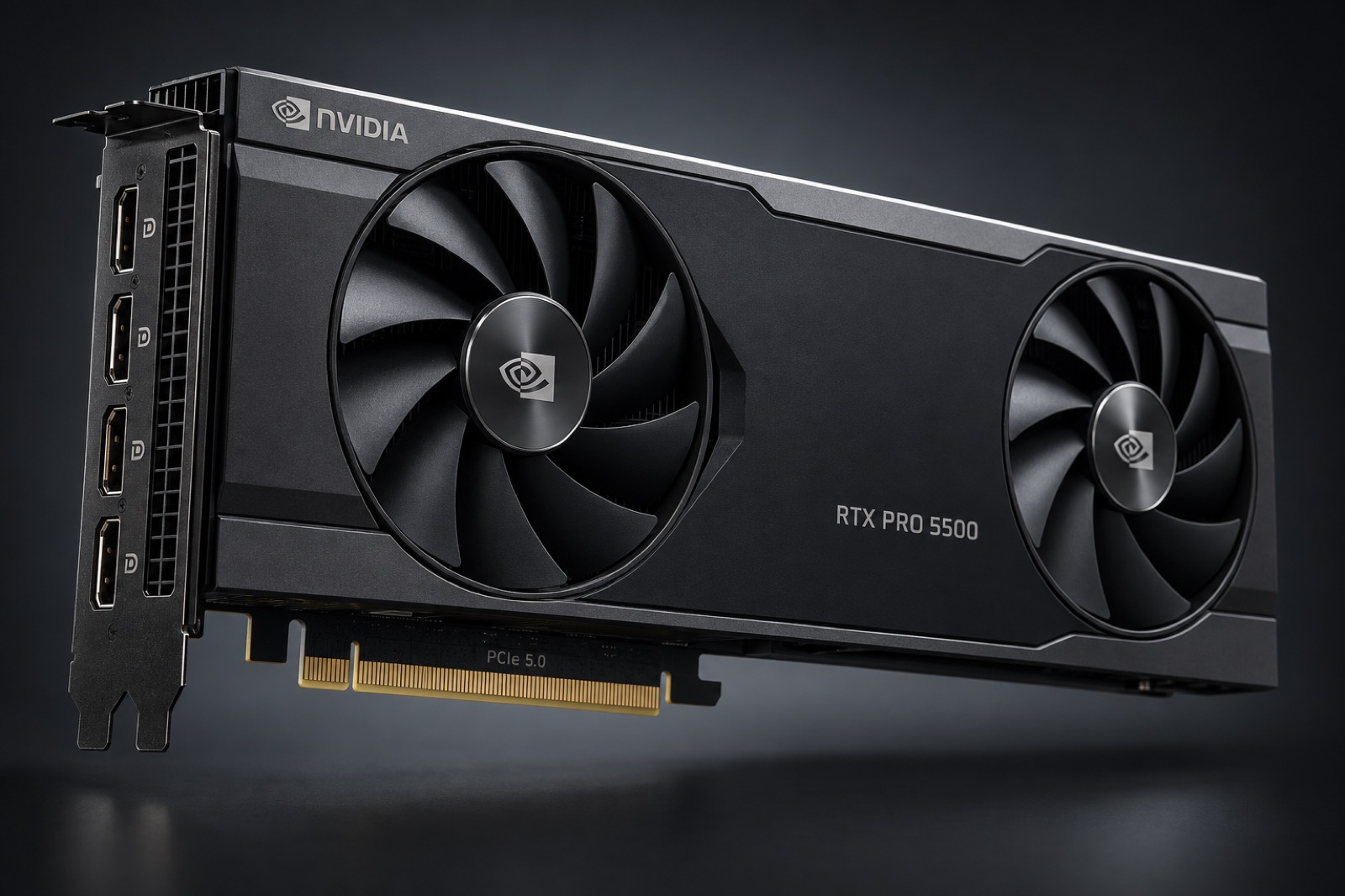
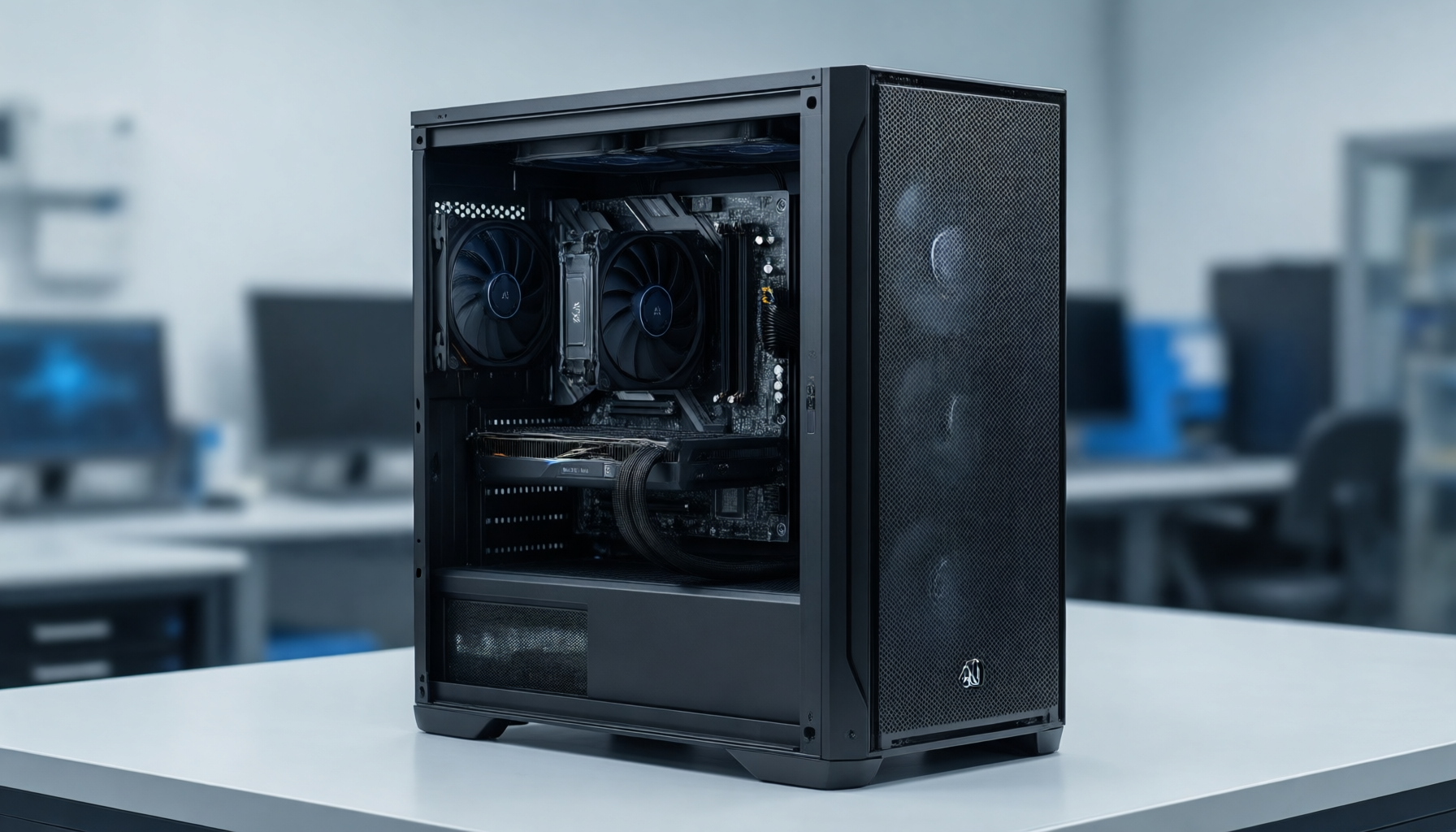
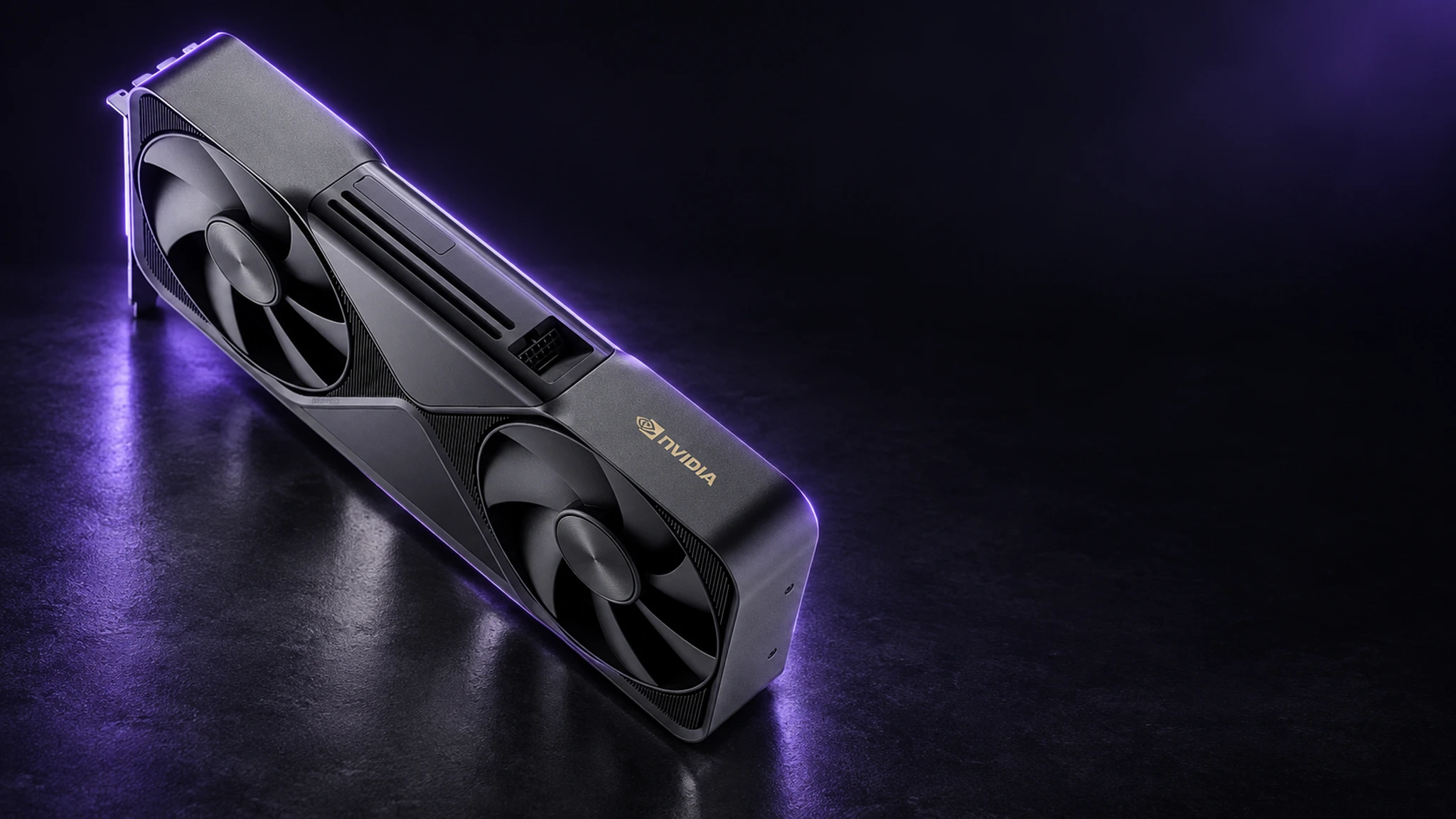
LM Studio's model catalogue is sorted by parameter count, and parameter count maps to VRAM. Compact models run on modest GPUs; frontier-class local models want 96 GB — where the RTX PRO 6000 Blackwell 96 GB turns LM Studio into something genuinely production-grade for private teams. Start in our AI workstation category for complete machines, or follow the local LLM hardware ladder to match a card to your favourite models. Prefer the command line? Ollama is the scriptable sibling.
What we cover in this tag
Practical, hardware-anchored guides: installing LM Studio and pointing it at the right GPU, choosing quantisations that fit your VRAM, exposing the local server to your own tools, and building a workstation that keeps up — including how the RTX PRO 6000D serves whole teams from a single quiet box. More walkthroughs land in the tutorials hub as the tools evolve.
Power-user moves worth knowing
Beyond chat: LM Studio runs a local OpenAI-compatible server, so your IDE completions, scripts and agents point at localhost instead of an API key. Keyboard-driven model switching lets you A/B a fast drafter against a heavyweight reasoner mid-task. The chat search indexes your conversations locally — on an AI workstation with fast NVMe, searching months of private chats feels like magic that is entirely yours.
Quantisation, demystified
LM Studio downloads models in quantised form — Q4, Q5, Q8 and friends — trading a sliver of quality for dramatically less VRAM. Practical guidance: Q4_K_M is the daily driver for most models; Q6/Q8 for final-pass work where nuance pays; full-precision only for fine-tuning. Our local LLM guides include per-tier VRAM tables so you can pick quantisations that fit the RTX PRO 6000 96 GB or whatever card you run.
LM Studio versus the alternatives
LM Studio trades scriptability for polish; Ollama is its command-line twin; Open WebUI adds a team chat face on top of either. The good news: they share the same models and the same hardware, so choosing is not a commitment — which is why our guides focus on the machine underneath. Start in the AI workstation category, then explore the whole toolbox in the tutorials hub.
LM Studio for small teams
A quiet trend in European offices: one shared workstation running LM Studio's local server, pointed at by everyone's IDE and editor — a private AI utility with zero marginal cost per colleague. Add user accounts at the router level, keep the box on the office LAN, and the setup scales to a dozen people before you want structured serving. When you outgrow it, the same GPU moves under Ollama or vLLM without changing machines — see the AI server guides for that graduation path.
Integrations that pay off daily
The local API unlocks the tools you already use: editors with AI assist, note apps that summarise, terminal helpers that explain errors, browser extensions that rewrite text — all configured once, all running offline against your AI workstation. Our integration cookbook covers the reliable pairings and the ones to avoid, tested on the hardware we sell rather than borrowed benchmarks. The local LLM tag holds the deeper architecture discussions.
Keeping models organised
Model collections grow fast: drafters, reasoners, coders, per-language specialists. LM Studio's catalogue management plus a simple naming convention keeps the list sane, and deleting stale weights frees the VRAM your next experiment needs. Housekeeping sounds boring until the moment a client demo needs the exact model you pruned — we speak from experience.
Get LM Studio
Download it free from lmstudio.ai — then browse our GPU guides to make the most of it.