



Welcome to our Antminer S21 XP setup guide. This comprehensive guide is designed to help you set up your new miner from unboxing to generating your first hash. Whether you're a novice miner or have some experience, our step-by-step instructions will ensure a smooth setup process. The Antminer S21 XP is one of the most powerful air-cooled Bitcoin miners available today, delivering an impressive 270 TH/s at approximately 3645W of power consumption. Before you begin, ensure you have all the necessary tools and access, including a dedicated high-amperage power circuit, network connectivity, and a mining pool account.
To get started, you'll need a few essential items. Let's gather everything you need to set up your Antminer S21 XP successfully.
What You Need
- Antminer S21 XP unit (270 TH/s, air-cooled)
- Power supply unit (PSU) rated for at least 4000W output, compatible with the miner
- C19 to C20 power cable (heavy-duty, minimum 14 AWG)
- Dedicated 16A or 20A electrical circuit (240V recommended)
- Ethernet cable (Cat5e or better)
- Computer or smartphone with browser access
- Mining pool account (e.g., Braiins Pool, OCEAN Pool, or F2Pool)
- Network access (router or switch with DHCP reservation capability)
- Phillips screwdriver
Step-by-Step Guide
Step 1: Unbox the Antminer S21 XP
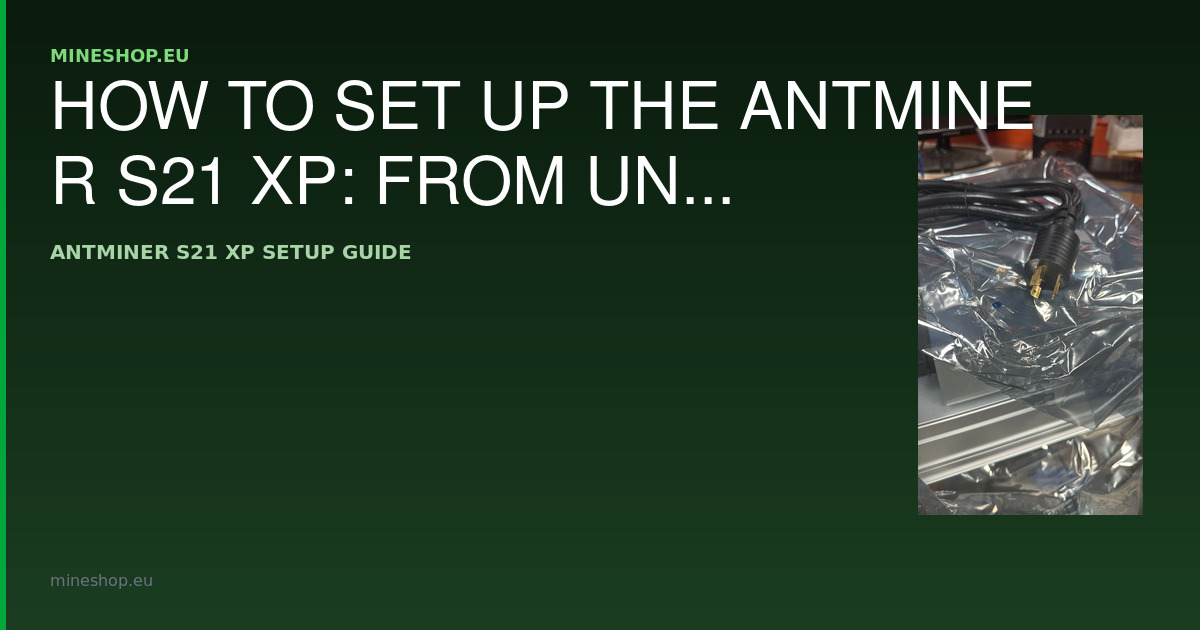
Carefully remove the Antminer S21 XP from its packaging, taking care not to damage the intake or exhaust fan guards. Ensure all components are included: the miner unit itself, the power supply, all associated power cables, and any documentation or warranty cards. Inspect the chassis, fans, and connectors for any visible damage that may have occurred during transit. If you ordered your unit from Mineshop.eu, the hardware ships directly from EU stock in Ireland via DHL or FedEx, minimising handling time and the risk of transit damage. If you spot any issues, photograph them immediately and contact our support team before proceeding.
Step 2: Plan Your Installation Environment
Before connecting power, take a moment to plan your installation space carefully. The Antminer S21 XP produces approximately 75 dB of noise during full operation, which is comparable to a loud vacuum cleaner running continuously. This level of noise makes a dedicated mining room, garage, basement, or purpose-built enclosure strongly advisable. Position the miner so that its intake fans face a source of cool, fresh air and the exhaust fans can expel hot air freely. Maintain a minimum clearance of 30 cm on both the intake and exhaust sides. Avoid stacking miners without proper spacing, and ensure ambient room temperature stays below 35°C for optimal performance. If you are running multiple units, consider installing an exhaust fan or ducting system to remove heat from the room efficiently. Poor ventilation is the single most common cause of hash board failures and premature hardware degradation.
Step 3: Connect the Power Supply
The Antminer S21 XP draws approximately 3645W under normal operating conditions, making correct electrical infrastructure absolutely critical. You must use a dedicated electrical circuit rated for at least 16A at 240V, though a 20A circuit provides a safer headroom margin. Never share this circuit with other high-draw appliances. Connect the PSU to the miner using the appropriate C19 to C20 power cable rated for the current load. Verify all connector clips are fully seated and locked. Before switching on power, double-check that your wall outlet or PDU (power distribution unit) is correctly rated and that your wiring has been inspected by a qualified electrician if you have any doubts. Using undersized wiring or an overloaded circuit creates a serious fire hazard. Once everything is confirmed, power on the PSU and you should hear the fans begin to spin up within seconds.
Step 4: Connect to the Network
Use a Cat5e or Cat6 Ethernet cable to connect the miner to your router or network switch. Avoid Wi-Fi adapters or powerline adaptors for mining hardware, as connection instability causes rejected shares and lost revenue. Once the cable is plugged in, check for a solid or blinking green LED on the miner's Ethernet port, indicating a successful link. To simplify ongoing management, configure a DHCP reservation on your router so the miner always receives the same local IP address. Log into your router's admin panel, locate the DHCP reservation or static lease section, and assign a fixed IP to the miner's MAC address. This avoids the frustration of hunting for a new IP each time the miner or router restarts, and makes it easier to monitor multiple units on the same network.
Step 5: Access the Miner Interface
On your computer or tablet, open a web browser and enter the miner's assigned IP address into the address bar. The Antminer login page will load within a few seconds. The default login credentials are root for the username and root for the password. You should change this password immediately after first login to secure the device from unauthorised access, particularly if your network is accessible from outside your home or facility. Once logged in, take a moment to familiarise yourself with the dashboard, which displays real-time hash rate, fan speeds, temperature readings per hash board, and pool connection status.
Step 6: Configure Mining Pool Settings
Navigate to the Miner Configuration section within the dashboard. Here you will enter your mining pool details. The Antminer S21 XP supports up to three pool entries for failover purposes, which is strongly recommended to prevent downtime if your primary pool experiences an outage. Below are example stratum URLs for three popular pools:
- Braiins Pool: stratum+tcp://stratum.braiins.com:3333
- OCEAN Pool: stratum+tcp://mine.ocean.xyz:4243
- F2Pool: stratum+tcp://btc.f2pool.com:3333
In the worker name field, enter your pool username followed by a dot and a worker label of your choice, for example yourpooluser.s21xp_worker1. Enter your pool password (often simply the letter x if your pool does not require one). Assign Braiins or your preferred pool as Pool 1, and set the others as Pool 2 and Pool 3 respectively. Save and apply your settings.
Step 7: First Run — What to Expect
After saving your pool configuration, the miner will automatically restart its mining process. During the first five to ten minutes, expect to see the reported hash rate climb gradually as all hash boards and chips reach their optimal operating temperature. This warm-up period is entirely normal. Full hash rate, targeting 270 TH/s, is typically reached within fifteen minutes of startup. You can verify your miner is contributing work by logging into your pool dashboard and checking that shares are being submitted from your new worker. Initial pool-side hash rate readings may fluctuate before stabilising over the first hour. At current Bitcoin network difficulty levels, 270 TH/s represents a highly competitive position for solo operation or meaningful pool contribution, though always verify current profitability using an up-to-date mining calculator before drawing conclusions.
Common Issues and Fixes
- Miner Not Powering On: Check all power connections and ensure the PSU is rated for the load. Verify the circuit breaker has not tripped.
- No Network Connection: Verify the Ethernet cable is connected at both ends and test with a different cable if available. Check that your router DHCP lease has not expired.
- Cannot Access Miner Interface: Double-check the IP address via your router's connected device list and ensure your computer is on the same subnet.
- Low Hash Rate: Check pool stratum URLs are entered correctly, confirm all three hash boards show green status, and check for high operating temperatures caused by inadequate ventilation.
- Overheating or Fan Alarms: Ensure ambient room temperature is below 35°C, clear any dust or obstructions from fan guards, and verify intake and exhaust airflow is unimpeded.
- Excessive Noise: If noise is a concern, consider acoustic panels around the mining space or a dedicated mining cabinet with sound dampening. Do not block airflow as a noise reduction method.
Frequently Asked Questions
- What is the default login for the Antminer S21 XP? The default login credentials are root for both username and password. Change this immediately after setup.
- How can I reset the miner to factory settings? Hold the reset button on the control board for ten seconds while the unit is powered on, or refer to the official Bitmain documentation for your firmware version.
- Can I mine solo with the Antminer S21 XP? Technically yes, but joining a pool such as Braiins Pool or OCEAN Pool is strongly recommended for consistent, predictable payouts rather than relying on solo block finds.
- What is the typical power consumption of the Antminer S21 XP? Approximately 3645W under standard operating conditions at 270 TH/s, making electrical cost the primary ongoing expense to factor into profitability calculations.
- Where can I get firmware updates? Visit the official Bitmain support page at Bitmain for the latest firmware releases compatible with the S21 XP.
For more options, explore our Bitmain Antminer series or check out our Home miners category. Mineshop.eu has been supplying European miners with genuine ASIC hardware since 2016; most orders ship from Ireland and Latvia, both in the EU, with fast DHL/FedEx delivery across all EU countries. For purchasing the Antminer S21 XP, visit our product page. For further assistance, feel free to contact us.
Comments (0)