

How to Setup Iceriver AE0: A Beginner's Cryptocurrency Mining Guide [With Firmware Tips]
How to Setup Iceriver AE0: A Beginner's Cryptocurrency Mining Guide [With Firmware Tips]
Starting your cryptocurrency mining guide journey can feel overwhelming with complex hardware setups and technical configurations to navigate. Many beginners struggle with their first mining rig, often spending hours troubleshooting issues that experienced miners solve in minutes.
Fortunately, the Iceriver AE0 offers a more accessible entry point for newcomers. This comprehensive Iceriver AE0 guide walks you through everything from initial setup to optimizing performance. You'll learn how to properly connect your device, install firmware updates, configure mining pools, and resolve known issues that might affect your mining efficiency.
Whether you've just unboxed your first miner or you're researching before purchasing, this step-by-step guide will help you start mining cryptocurrency quickly and efficiently. Let's dive into setting up your Iceriver AE0 miner from scratch!
Unboxing and Preparing the Iceriver AE0
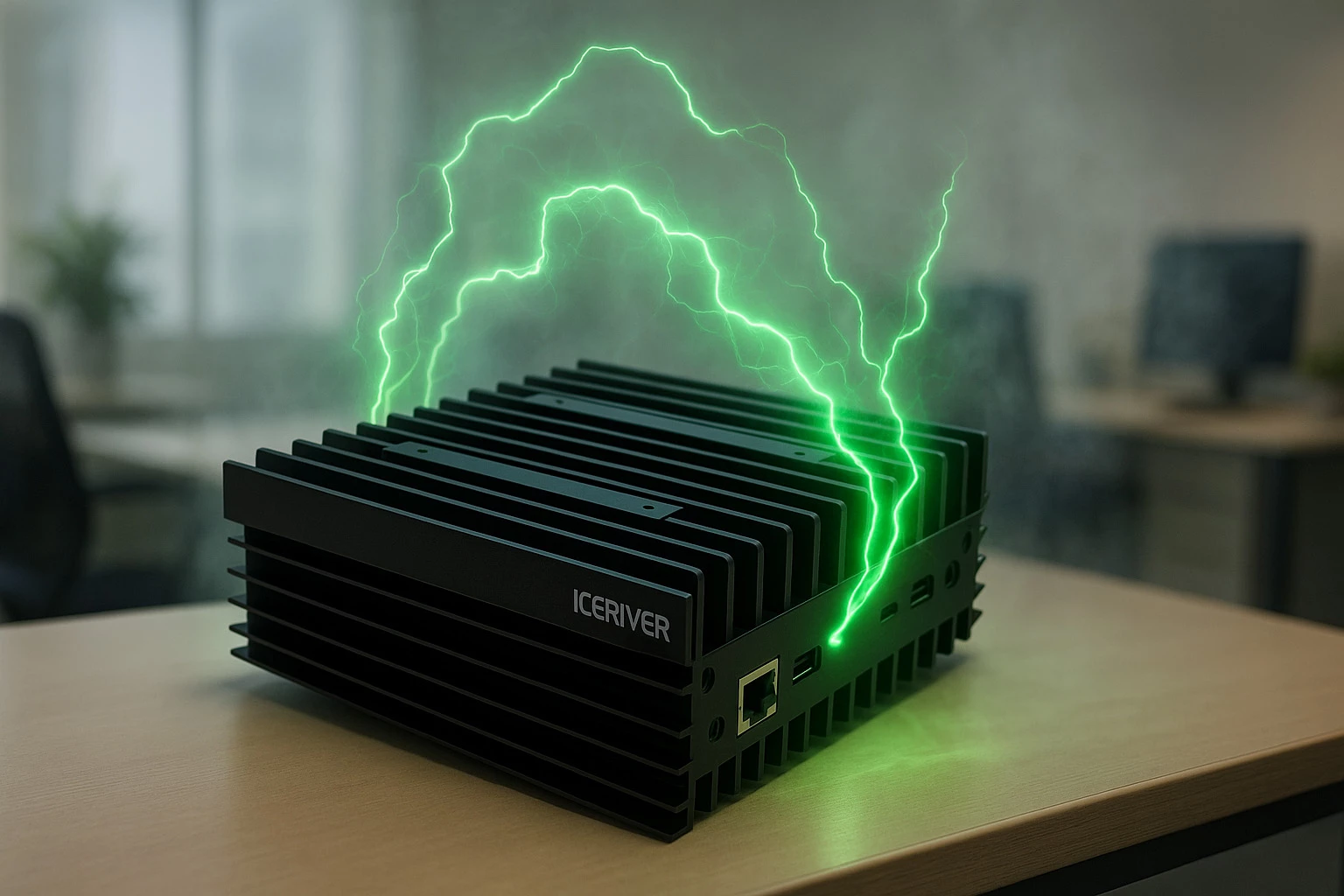
Upon receiving your Iceriver AE0 miner, proper unboxing and setup are crucial first steps in your cryptocurrency mining journey. Following the correct procedures ensures your hardware remains undamaged and functions optimally from the start.
Check packaging and contents
The Iceriver AE0 arrives in a thick cardboard box with protective foam padding designed to prevent damage during shipping. Before opening, examine the outer packaging for any signs of damage that might affect the sensitive electronic components inside.
When unpacking your Iceriver AE0, you should find these components:
-
The main miner unit (dimensions: 200 x 194 x 74 mm)
-
Power supply unit (note: some models may not include this)
-
AC power cord appropriate for your region
-
Quick start guide with basic setup instructions
-
Warranty card and quality control certification
Additionally, some packages may include a QR code linking to comprehensive online documentation . It's worth noting that the miner weighs approximately 2.5 kg (2500g),so handle with appropriate care when removing it from the packaging.
Place miner on a stable, ventilated surface
Proper placement of your Iceriver AE0 is essential for optimal performance and longevity. After removing the miner from its packaging, place it on a flat, stable surface that can support its weight.
The compact design makes the AE0 ideal for home setups, however, adequate ventilation is critical. This ASIC miner generates significant heat during operation and features a dual-fan cooling system that requires unobstructed airflow. The operating temperature range is 5-40°C , and maintaining proper temperature will help ensure consistent performance.
Furthermore, consider the noise level when choosing a location. The Iceriver AE0 operates at approximately 50dB, which is relatively quiet for a mining device but still noticeable in a silent room. Placing it in a well-ventilated area away from living spaces might be preferable for comfort.
Connect power and Ethernet cables
Once properly positioned, you'll need to connect the necessary cables:
-
Power connection: Connect the included power cord to the miner's power input socket, ensuring it's fully seated. Then connect the other end to a grounded electrical outlet. The Iceriver AE0 operates on standard household power (100-240V), so no special electrical installations are required.
-
Network connection: Connect one end of an Ethernet cable (Cat5e or Cat6 recommended) to the miner's network port (RJ45 connector) and the other end to your router or network switch . Ensure the connectors click securely into place at both ends.
Although the Iceriver AE0 has Wi-Fi capability, it's not fully optimized in initial firmware versions . Therefore, using a wired Ethernet connection is necessary for initial setup and provides more stability for mining operations. The manufacturers will likely release firmware updates to improve Wi-Fi functionality in the future .
For additional protection, consider using a surge protector or uninterruptible power supply (UPS) with your miner . This precaution safeguards your investment against power fluctuations that could damage the sensitive electronics.
After connecting both power and Ethernet cables, the miner should power on automatically within a few seconds , indicated by fan noise and possibly indicator lights. This completes the physical setup process, preparing you for the next step of finding and accessing your miner on the network.
Finding and Accessing the Miner on Your Network
After connecting your Iceriver AE0 to power and Ethernet, the next crucial step in your cryptocurrency mining guide involves finding the miner on your network. This process requires identifying the IP address assigned to your device, which enables access to its control interface.
Use IP Scanner or Router to find IP address
Finding your miner's IP address can be accomplished through two common methods that require minimal technical expertise.
The first approach involves using Advanced IP Scanner, a free network scanning tool available for most operating systems. Once installed:
-
Launch Advanced IP Scanner on a computer connected to the same network as your miner
-
Initiate a scan of your local network
-
Look for a device named "IceRiver," "IceRiver-AE0," or sometimes listed under "Synelec Telecom Multimedia"
-
Note the corresponding IP address (typically formatted as 192.168.x.x or 10.0.x.x)
Alternatively, you can access your router's administration panel to view connected devices:
-
Open a web browser and enter your router's IP address (commonly 192.168.0.1 or 192.168.1.1)
-
Log in with your router's admin credentials
-
Navigate to "Connected Devices," "DHCP Client List," or similarly named section
-
Identify your Iceriver AE0 in the list and record its assigned IP address
This router method proves particularly useful in home environments where you have administrator access to your network equipment.
Alternative: Use IceRiver IP Reporter Tool
For a more specialized approach, IceRiver offers an official IP Reporter Tool designed specifically to locate their mining devices:
-
Download the IceRiver Miner IP Tools from the official website
-
Extract and open the application on your computer
-
Click the "Detect IP" button in the software interface
-
Press the physical IP button on your miner (located near the indicator lights)
-
Press the button multiple times if necessary until the IP address appears in the software
This method often proves most reliable since it uses protocols specifically designed to identify IceRiver miners on your network. If the IP detection process fails initially, try pressing the button several times, as recommended by many users .
Log in using default credentials
Once you've obtained the IP address, accessing the miner's web interface is straightforward:
-
Open any web browser on your computer or smartphone
-
Enter the miner's IP address in the address bar (e.g., 192.168.88.101)
-
When prompted for login credentials, use:
-
Username: admin
-
Password: 12345678
-
These default credentials grant access to the miner's control panel where you'll configure mining settings in subsequent steps. The web interface provides complete control over all aspects of your mining operation, including pool configuration, wallet settings, and performance monitoring.
If login fails, verify you've entered the correct IP address and credentials. Occasionally, network issues might prevent access, in which case checking your connections or restarting the miner may resolve the problem.
With successful login, you'll see the miner's dashboard, complete with status information and a navigation menu that typically appears on the left side of the screen . This marks the beginning of your journey into configuring the actual mining parameters.
Configuring the Miner Settings
With your Iceriver AE0 successfully located on your network, the next vital step involves configuring the proper mining settings to begin cryptocurrency mining. This critical setup process ensures your miner connects to the right pools and directs earnings to your wallet.
Navigate to mining settings page
Once logged into the Iceriver AE0 web interface using the default credentials (username: admin, password: 12345678) , locate the main navigation menu on the left side of the dashboard. Click on "Mining Setting" to access the configuration page . This page contains all the essential fields needed to connect your miner to a mining pool and begin operations.
The interface is straightforward, displaying input fields for pool URLs, wallet addresses, and passwords. Each field serves a specific purpose in directing your mining operations to the appropriate destination.
Enter mining pool URLs
Selecting the right mining pool is crucial for optimal mining performance. For the Iceriver AE0, several reputable options exist:
-
Whalepool
-
Dxpool
Primarily, copy the pool address closest to your geographic location and paste it into the "Pool 1" field . For instance, if you're in the United States, use the US-based Whalepool URL as your primary pool. Subsequently, add European and Asian pool addresses in the "Pool 2" and "Pool 3" fields respectively as backups.
This redundancy strategy ensures that if your primary mining pool experiences downtime, your miner automatically switches to alternative pools, maintaining continuous mining operations without manual intervention.
Add wallet address and worker name
After configuring pool URLs, you'll need to add your cryptocurrency wallet address. Copy your Aleo wallet address (such as a Leo wallet) and paste it into the wallet address fields.
Next, add a period followed by a worker name to distinguish this specific miner at the pool level. For example:
walletaddress.AE0
The worker name helps identify your specific mining device when monitoring performance through the pool's dashboard. Indeed, giving each of your miners a unique worker name proves valuable when operating multiple devices.
Set password and save settings
Finally, enter a password in the designated field for each pool configuration. While some guides recommend using "x" as a standard password, others suggest you can use any password of your choice. This password is typically used for pool authentication rather than security, hence the flexibility.
After entering all required information, click the "Save" button at the bottom of the page. Your miner will automatically apply these settings and attempt to connect to the configured mining pool.
The system may take a moment to process these changes as it establishes connections with the selected mining pools. Meanwhile, you can proceed to the dashboard to monitor the mining status after saving your settings.
Starting the Mining Process
Now that your Iceriver AE0 is properly configured, you'll need to verify it's actually mining cryptocurrency. This critical phase confirms your setup is working correctly and generating income through your mining efforts.
Verify mining status on dashboard
Once your settings are saved, wait approximately 2-3 minutes for the miner to establish connections with your configured pools. Navigate to the main dashboard of your Iceriver AE0's web interface to view the mining status. The dashboard displays essential information including current operational status, miner type, and health condition.
Pay close attention to the indicator lights on the physical device. When mining properly, you should see a steady green light. If both red and green lights are blinking simultaneously, this typically indicates either pool information issues or internet connectivity problems.
Check hashrate and pool connection
The dashboard provides real-time monitoring of your mining performance. Check that your hashrate appears and is within expected parameters. The Iceriver AE0 commonly experiences fluctuations of approximately 10% in hashrate performance, which is considered normal behavior.
For optimal hashrate stability (around 390-400), some users report success by maintaining slightly higher operating temperatures. A practical approach involves placing a USB fan atop the miner and manually adjusting the internal fan speed to 50% in the settings menu. Nevertheless, ensure the operating temperature stays within the 5-40°C range for optimal performance.
Additionally, verify your pool connection status shows "Connected" or "Active." The dashboard should display your worker name as configured earlier, confirming proper communication with the mining pool. You can also cross-reference this information by checking your mining pool's website, where your worker should appear within 10-15 minutes after successful connection.
Restart if mining doesn't begin
In case mining doesn't initiate properly after configuration, a restart often resolves common issues . Follow these steps to reset your Iceriver AE0:
-
Press and hold the reset button on the miner until both D3 and D4 lights start flashing simultaneously
-
Maintain patience as you wait for these lights to stop flashing and remain steady, indicating the miner is ready to reboot
-
Allow the machine to complete its reboot process—never power off during this critical phase
-
After reboot completes, reconfigure your mining pool and wallet settings
-
Verify internet connectivity by checking all network cables are securely connected
Remember that fans typically won't operate unless the miner is actively mining, consequently, silent fans don't necessarily indicate a problem. Furthermore, if connectivity issues persist, consider using the FING app on a mobile device connected to the same network to locate your miner's current IP address, as it occasionally changes during restarts .
Firmware and Connectivity Tips
Proper maintenance and protection of your Iceriver AE0 ensures long-term reliability in your cryptocurrency mining operation. Beyond basic setup, these advanced tips help optimize performance and prevent common issues.
Check for firmware updates regularly
Maintaining current firmware on your Iceriver AE0 is essential for optimal mining efficiency. Visit the official Iceriver website (iceriver.io/firmware-download/) regularly to check for new updates. Recent firmware versions include critical improvements such as enhanced web interfaces and bug fixes related to hashboard stability under various temperature conditions.
When downloading firmware:
-
Verify you're using the correct model-specific version for the AE0
-
Always download directly from the official Iceriver website
-
Verify the MD5 checksum before installation
-
Extract the file and confirm it has a ".bgz" extension
Important: Never use unofficial firmware sources, as this could void your warranty or damage your equipment. Additionally, if your miner operates without issues, upgrading isn't always necessary.
Enable Wi-Fi after firmware update
Unlike earlier IceRiver models, the AE0 includes built-in Wi-Fi capability that becomes fully functional after firmware updates. Initially, this feature wasn't fully optimized, requiring Ethernet for setup. Nonetheless, recent firmware updates have enabled complete Wi-Fi functionality, allowing wireless operation.
After updating your firmware, navigate to the network settings page in the web interface to configure your wireless connection. This provides flexibility in miner placement without requiring proximity to Ethernet connections.
Use surge protector for power stability
Protecting your mining investment from electrical fluctuations is crucial yet often overlooked. Connect your Iceriver AE0 to a high-quality surge protector or uninterruptible power supply (UPS) to safeguard against:
-
Sudden power surges
-
Voltage fluctuations
-
Complete power outages
This simple precaution prevents costly damage to your miner's sensitive electronic components. Users report that quality surge suppressors effectively protect connected equipment during power anomalies, potentially saving thousands in replacement costs.
For even greater protection in multi-rig setups, consider whole-house surge suppressors installed at your electrical panel, offering comprehensive protection for all mining equipment.
Conclusion
Setting up your Iceriver AE0 miner doesn't need to be an intimidating process. Throughout this guide, we've walked through every essential step to get your cryptocurrency mining operation running efficiently. From unboxing and physical setup to network configuration and pool settings, each component plays a vital role in your mining success.
Remember that proper placement and ventilation significantly impact your device's performance and longevity. Additionally, regular firmware updates ensure you benefit from the latest improvements and bug fixes. Protection against power fluctuations through quality surge protectors serves as a wise investment for your mining equipment.
The learning curve might seem steep at first, but once your miner starts generating cryptocurrency, you'll find the setup process was worth the effort. Most importantly, the Iceriver AE0's beginner-friendly design makes it an excellent entry point for newcomers to the cryptocurrency mining world.
Though mining difficulties and cryptocurrency markets will fluctuate over time, your properly configured Iceriver AE0 provides a solid foundation to begin your mining journey. Lastly, patience during the initial setup rewards you with a reliable mining operation that can generate passive income with minimal ongoing maintenance. Happy mining!
Related Blog
RTX PRO 6000 vs RTX PRO 6000D: Care GPU Blackwell să cumperi în 2026?
Sep 7, 2026 by Guntis Vitolins
Mineshop
RTX PRO 6000 vs RTX PRO 6000D: Kuru Blackwell GPU iegādāties 2026. gadā?
Sep 7, 2026 by Guntis Vitolins
Mineshop
RTX PRO 6000 vs RTX PRO 6000D: Który GPU Blackwell wybrać w 2026?
Sep 7, 2026 by Guntis Vitolins
Mineshop
RTX PRO 6000 vs RTX PRO 6000D: Welches Blackwell GPU kaufen Sie 2026?
Sep 7, 2026 by Guntis Vitolins
Mineshop