

How to Update Firmware: Avalon Nano 3S, Mini 3, Q | 2025 Guide
🔧 How to Update Firmware: Avalon Nano 3S, Avalon Mini 3, and Avalon Q
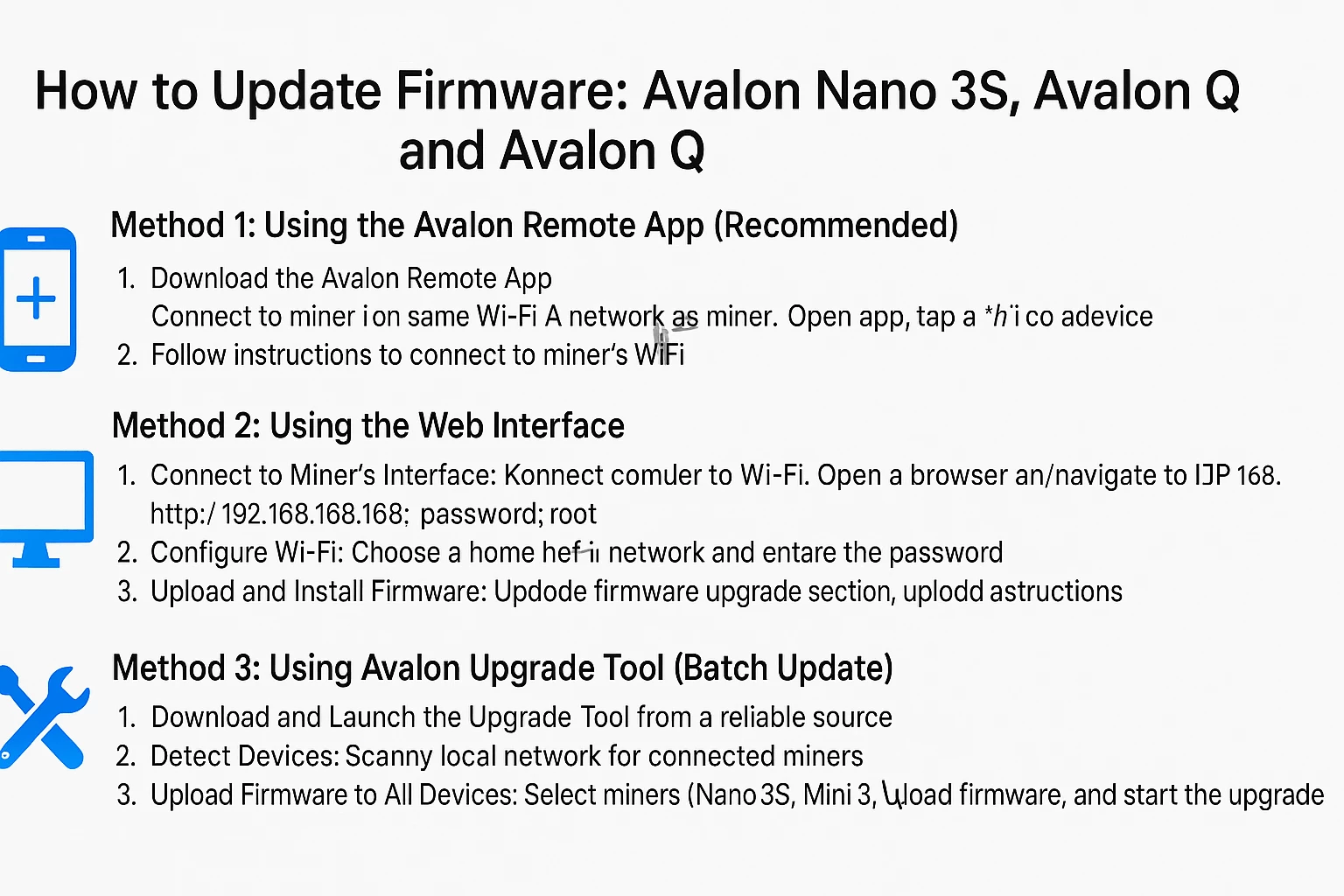
This tutorial applies to all three models: Avalon Nano 3S, Avalon Mini 3, and Avalon Q. The update process and tools are the same across these devices.
Method 1: Using the Avalon Remote App (Recommended)
-
Download the Avalon Remote App from your mobile device’s app store.
-
Connect to the Miner:
-
Make sure your phone is connected to the same Wi-Fi network as the miner.
-
Open the app and tap the "+" icon to add a new device.
-
Follow the instructions to connect to the miner’s Wi-Fi (e.g.,
heater_nano_xxxxor similar).
-
-
Update Firmware:
-
The app will automatically check for updates.
-
If an update is available, follow the prompts to download and install it.
-
Note: This method is simple and user-friendly, especially useful for new users. It also helps fix connectivity bugs that may affect these models.
Method 2: Using the Web Interface
-
Connect to the Miner’s Interface:
-
Connect your computer to the miner’s Wi-Fi (
heater_nano_xxxxor equivalent). -
Open a browser and go to
http://192.168.168.168. -
Log in with:
-
Username:
root -
Password:
root
-
-
-
Configure Wi-Fi:
-
Choose your home Wi-Fi and enter the password.
-
The miner will reconnect and display a new local IP address.
-
-
Upload and Install Firmware:
-
Go to the firmware upgrade section.
-
Upload the correct firmware file and follow instructions to complete the update.
-
Method 3: Using Avalon Upgrade Tool (Batch Update)
-
Download and Launch the Upgrade Tool from a reliable source.
-
Detect Devices:
-
Use the tool to scan your local network for all connected miners.
-
-
Upload Firmware to All Devices:
-
Select the miners (Nano 3S, Mini 3, Q).
-
Upload the firmware and start the upgrade.
-
Tip: This method is best when updating multiple units at once, especially in small-scale home mining setups.
⚠️ Important Notes
-
Backup Settings: Save your mining pool and network configuration before upgrading.
-
Avoid Power Interruptions: Do not turn off the miner during the update.
-
Post-Update Check: Confirm the miner starts correctly and resumes operation after reboot.
Related Blog
RTX PRO 6000 vs RTX PRO 6000D: Care GPU Blackwell să cumperi în 2026?
Sep 7, 2026 by Guntis Vitolins
Mineshop
RTX PRO 6000 vs RTX PRO 6000D: Kuru Blackwell GPU iegādāties 2026. gadā?
Sep 7, 2026 by Guntis Vitolins
Mineshop
RTX PRO 6000 vs RTX PRO 6000D: Który GPU Blackwell wybrać w 2026?
Sep 7, 2026 by Guntis Vitolins
Mineshop
RTX PRO 6000 vs RTX PRO 6000D: Welches Blackwell GPU kaufen Sie 2026?
Sep 7, 2026 by Guntis Vitolins
Mineshop